
2/4/2021
Please note, the Hub application is under active development. As such, text and screenshots may quickly become out of date. If you have any questions about current Hub functionality, please reach out to your Hub contact directly.
The Comments tab allows you to enter comments related to the project.
This page displays all the comments added by users along with the user's name and the time stamp.
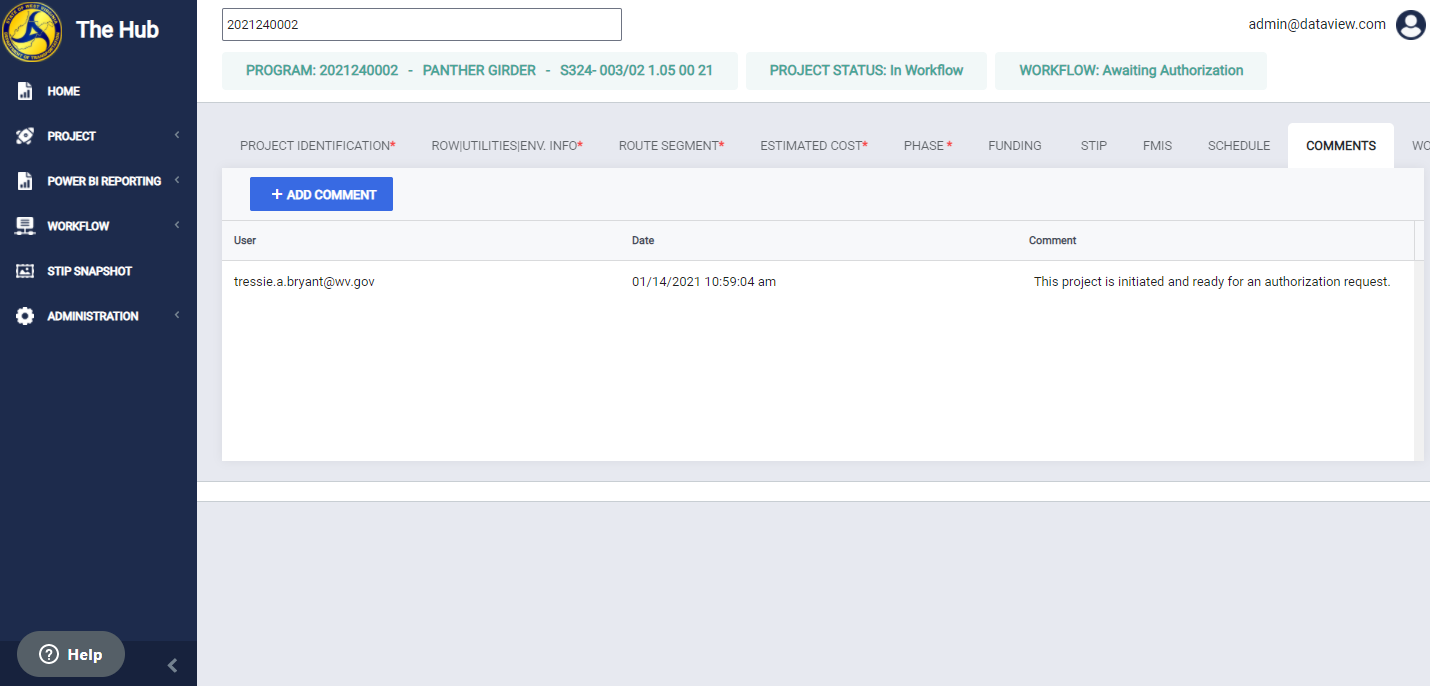
Navigate to the Project Comments tab
To navigate to this tab, click Comments on the tab strip within a project.
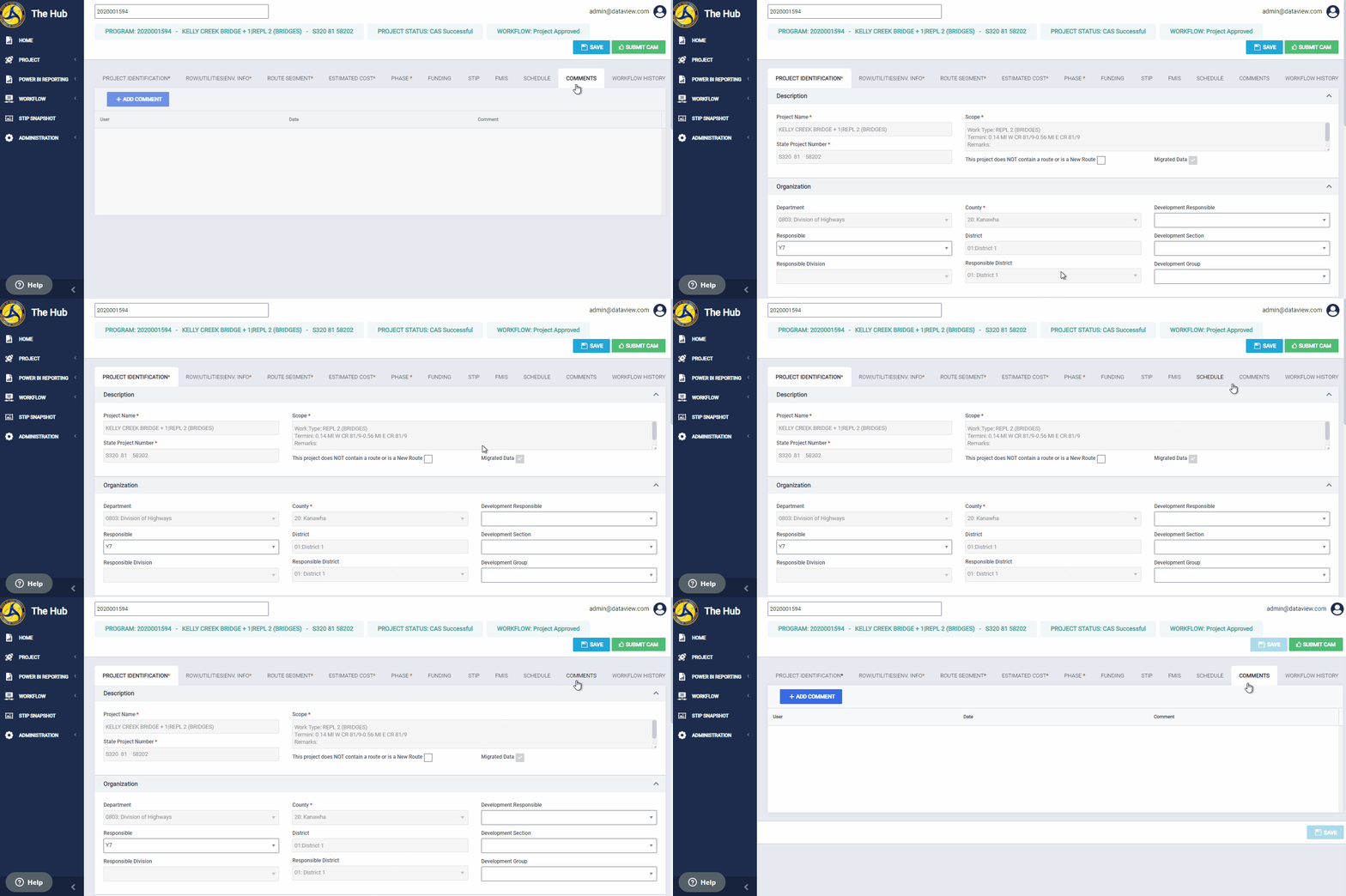
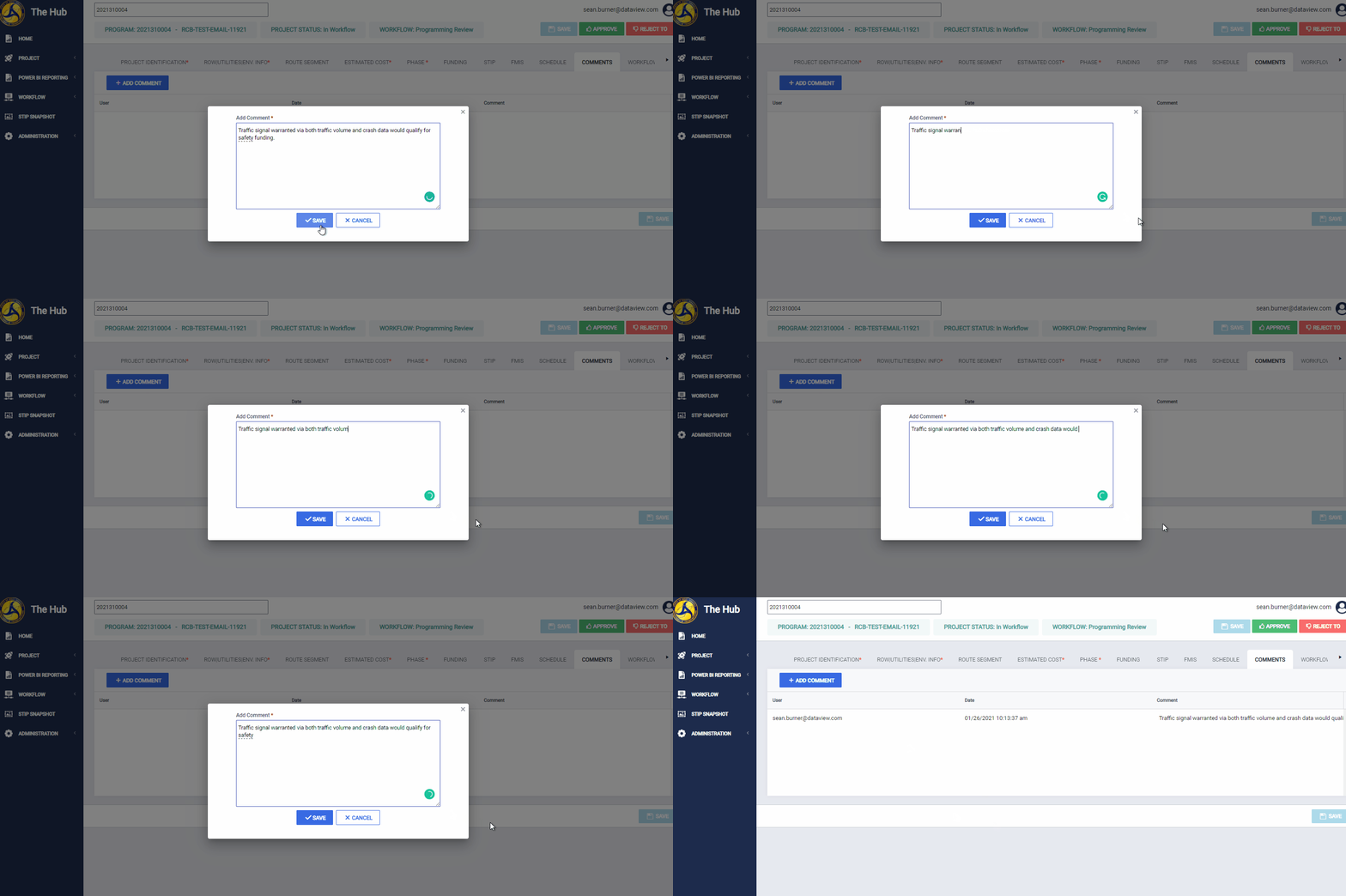
You can add comments to this page by clicking the Add Comment button.
When you click the button, the Add Comment Popup presents. Within this popup, there is a text field that allows you to enter your comment. To save, click the Save button. To discard the comment without saving, click the Cancel button.
Comments sort by Date added, with the most recent comment on top.
Notes
- Comments cannot be edited or deleted. You must enter at least 10 characters to save a comment. You can not enter more than 500 characters for the comment.
- For a new project for which the initiation process has started; when you navigate to the Comments tab, the Add Comment button is disabled. This button is enabled when the Project Name and the County are selected on the Project Identification page and the project saved.
Comments
0 comments
Please sign in to leave a comment.