
Updated 2/4/2021
Please note, the Hub application is under active development. As such, text and screenshots may quickly become out of date. If you have any questions about current Hub functionality, please reach out to your Hub contact directly.
The Hub's Route Segment Tab provides tools for adding all Routes and Route Information associated with a Project.
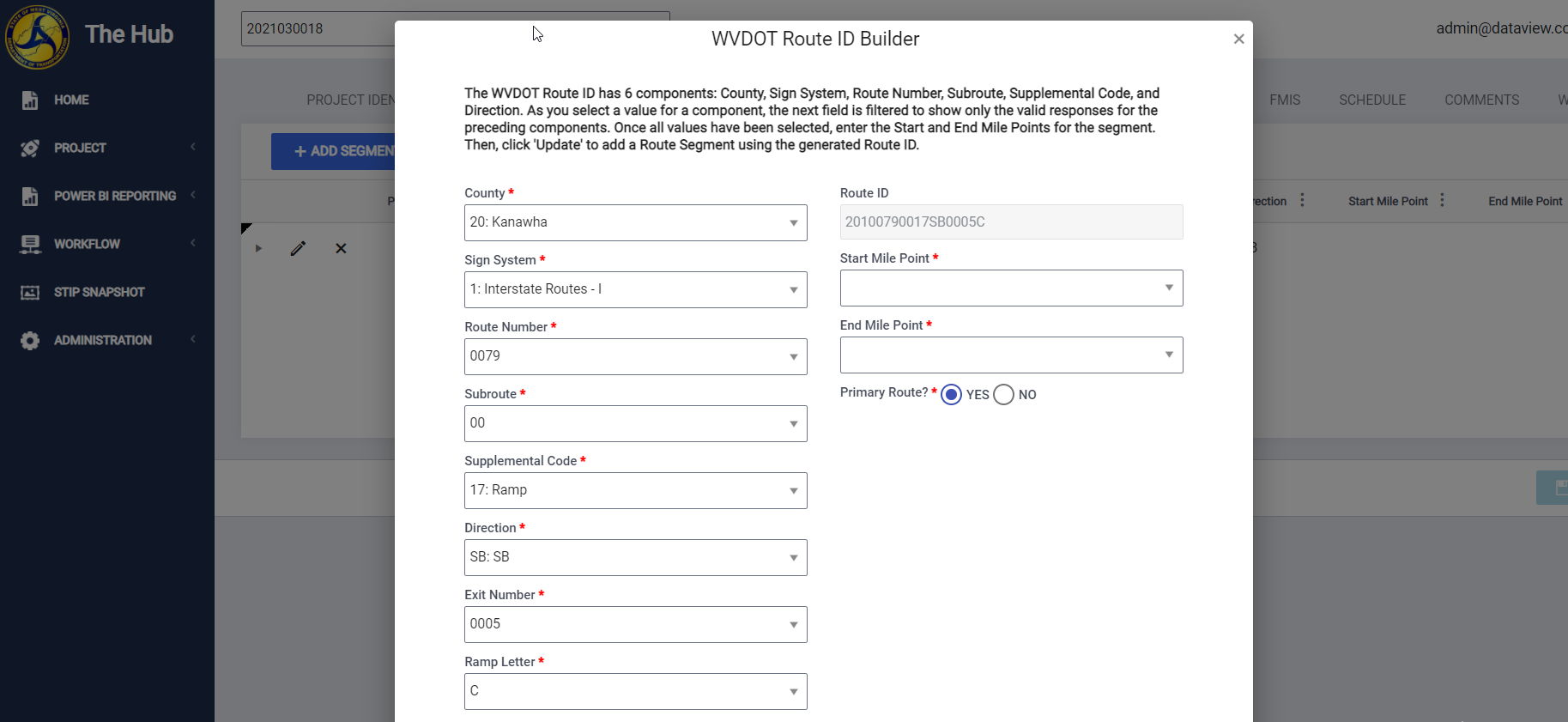
If you have edit permissions, the Route ID Builder feature lets you easily build and add a Route ID to a Project by populating information about that route.
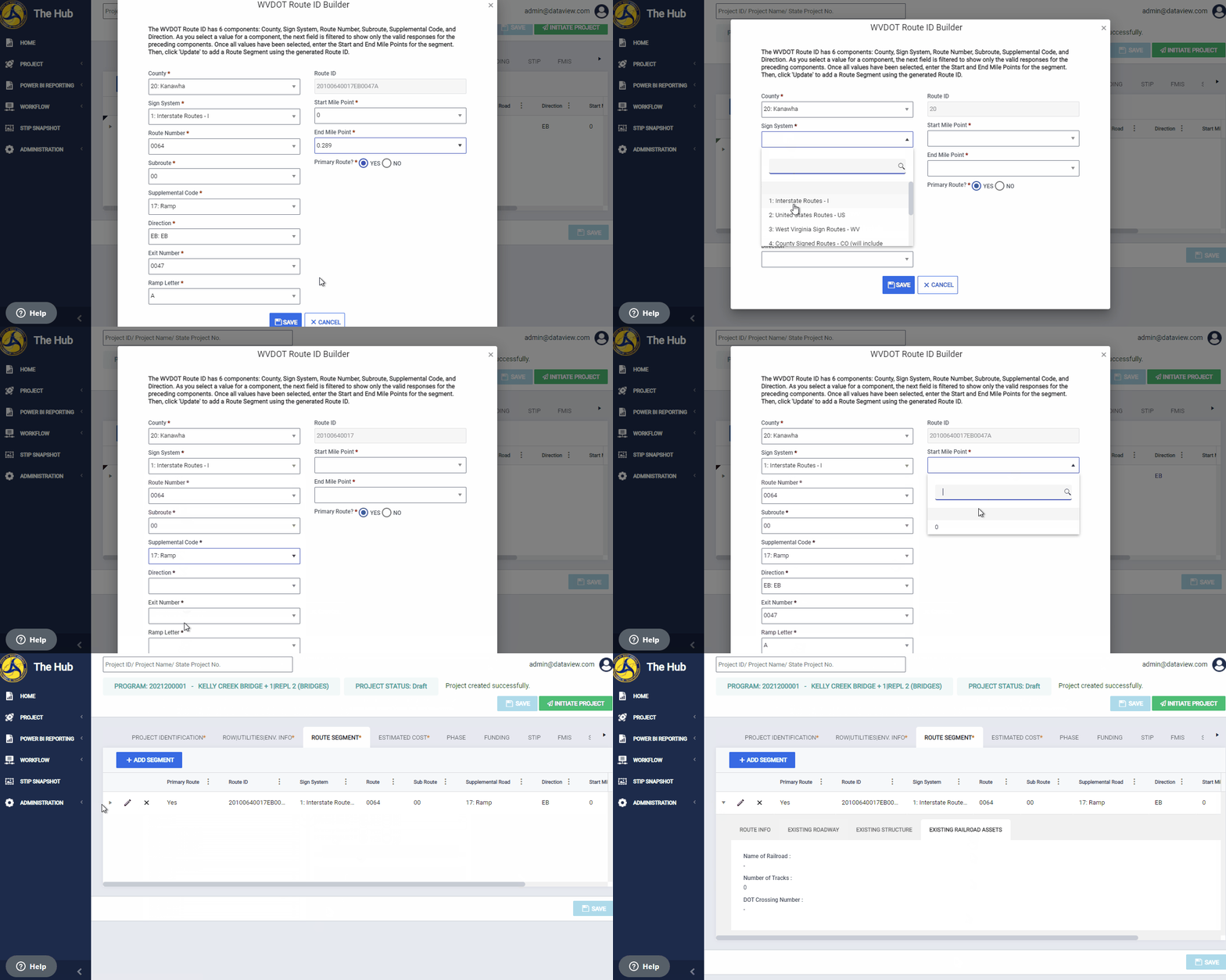
Navigate to Route Segment Tab
To navigate to this tab, click the Route Segment tab on the tab strip within a project.
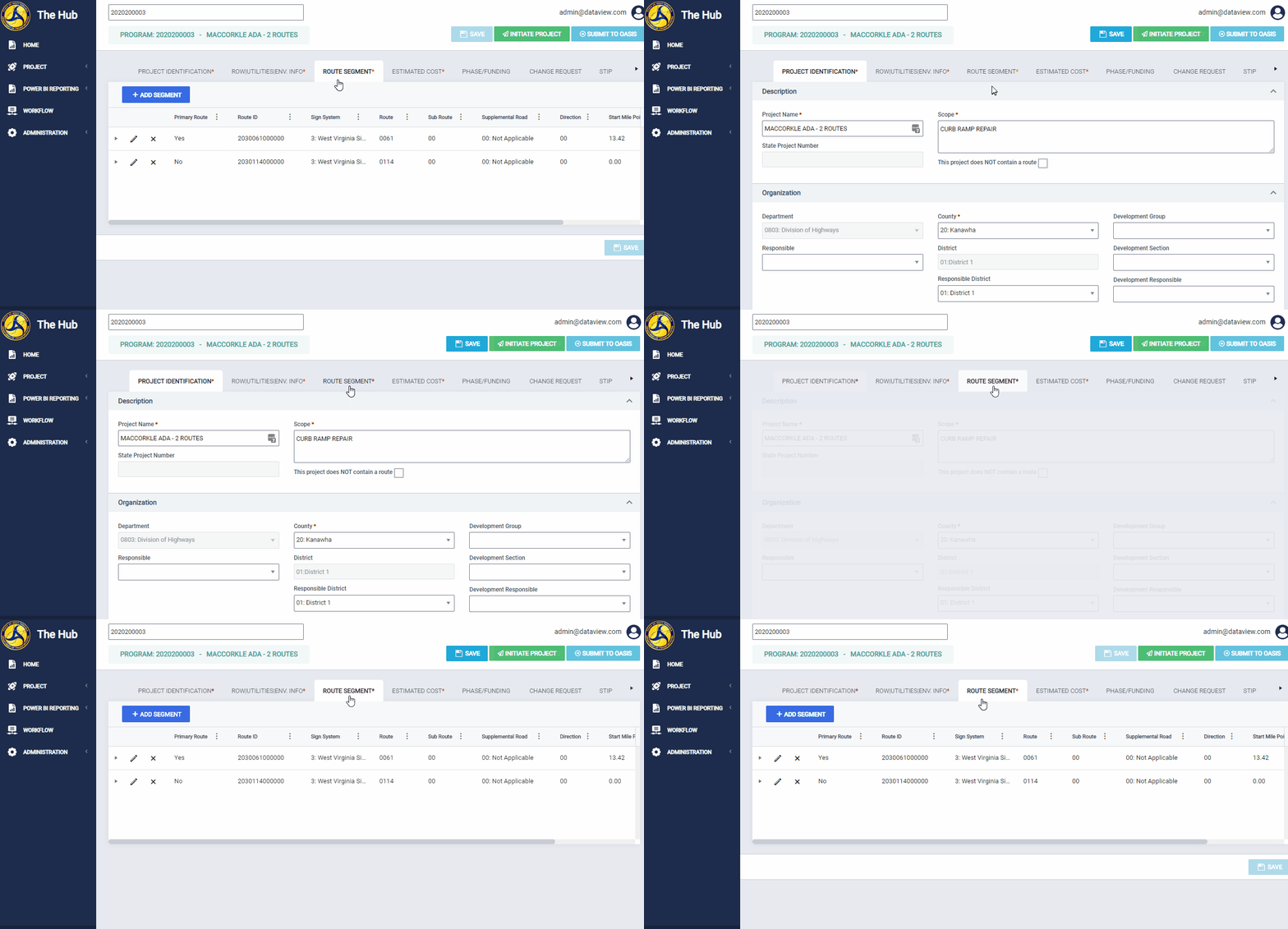
Add a Route Segment
To add a new route segment click the Add Segment button on this tab. This opens the WVDOT Route ID Builder and allows you to add a new segment.
Note: The Add Segment button is disabled if the This project does NOT contain a route checkbox is checked on the Project Identification tab or if the project has not yet been saved.
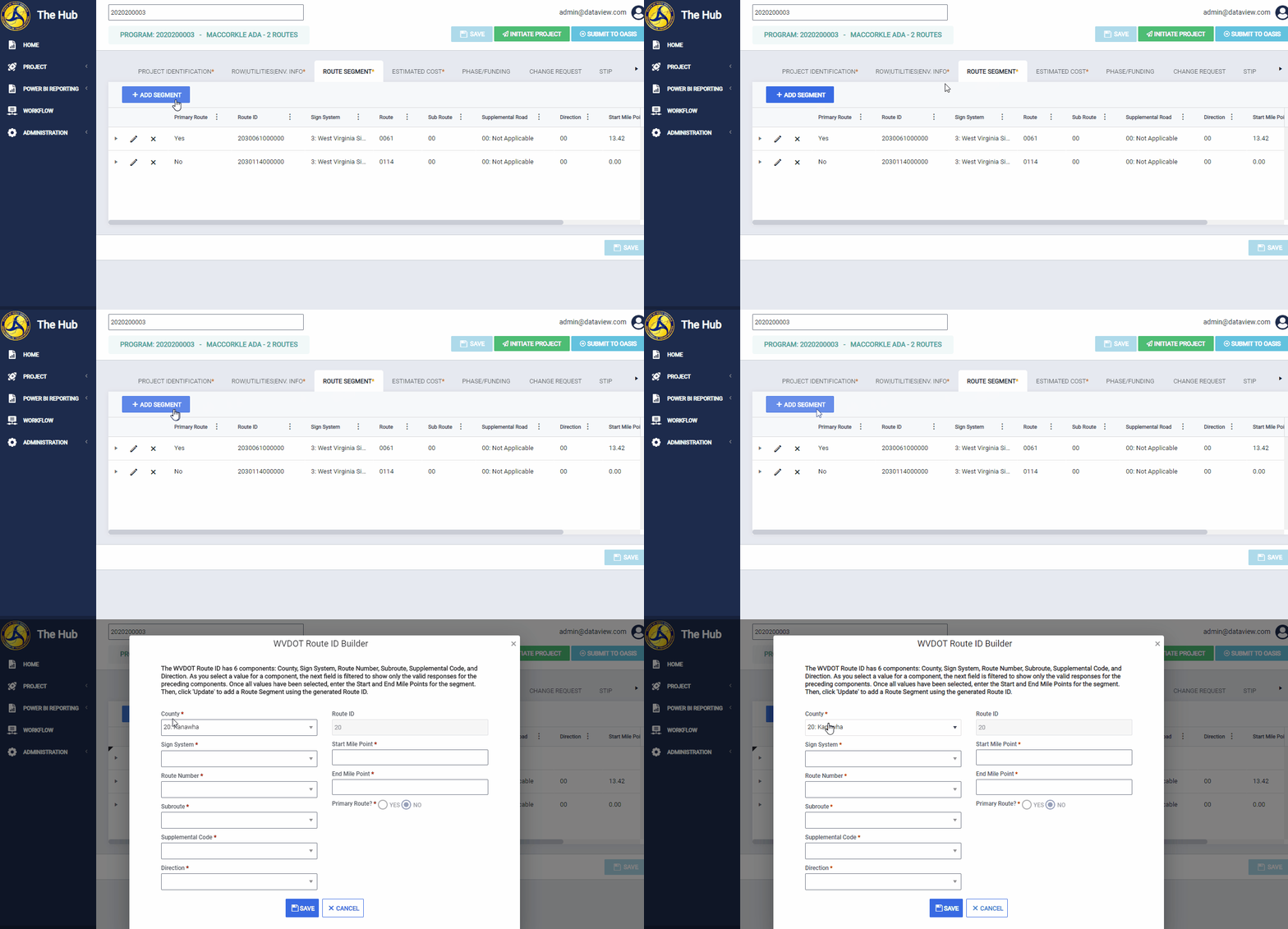
WVDOT Route ID Builder
Creating a route requires the following fields:
- County
- Sign System
- Route Number
- Subroute
- Supplemental Code
- Direction
- Exit Number (required if 'Ramp' selected as the Supplemental Code')
- Ramp Letter (required if 'Ramp' selected as the Supplemental Code')
- Sequence Number (required only on applicable routes)
- Start Mile Point
- End Mile Point
Be sure to select fields in the order they appear on the Route ID builder. Once you select a field, the next field will populate with only relevant values.
The Hub generates the Route ID based on your selections.
You must choose one route as the 'Primary Route'. The Primary Route? field defaults to 'Yes' if you haven't added more routes. Otherwise, it defaults to 'No'. To change Primary Routes, edit the Primary Route Segment and change it to 'No'. This will allow you to edit another route and change it to the primary.
Once you've selected all the values, click Save to add the Route Segment using the generated Route ID.
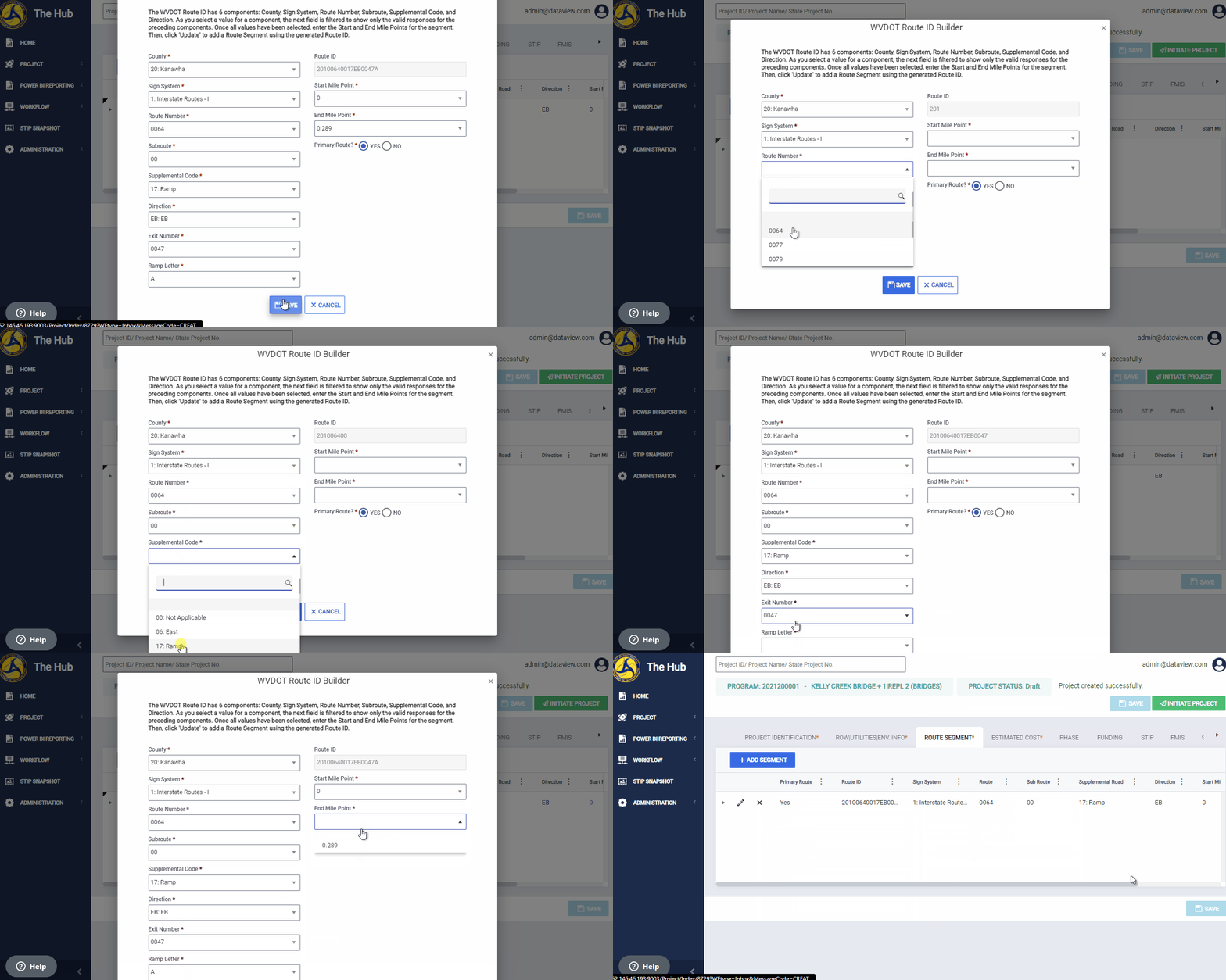
Notes
- Start and End Mile Points must agree with the Road Inventory Log, not the start and end points of the project. If the project covers more than one segment, you may enter each segment or just one segment using the start and end points that would contain the project. For example, suppose you are entering a paving project that goes from milepost 2.00 to 13.00. If the highway has a segment from milepost 0.00 to 10.00 and the next segment is 10.00 to 15.00, you may enter two segments (0.00 to 10.00 and 10.00 to 15.00) or you may enter just one segment using the start as 0.00 and the end as 15.00; note that you cannot enter the beginning and ending mileposts of the actual project on the Route ID builder. Regardless of which way you enter it, the start and end points have to be valid start point and end points using the drop downs.
- If a project covers more than one segment from the Road Inventory Log but you enter it as only one segment in the HUB, the project will take the attributes of the first applicable Road Inventory Log segment.
- If the highway has two directions and the project is on both sides, you must enter the route segments for each direction.
- Exit Number, Ramp Letter, and Sequence Number only apply to a subset of routes. The Hub hides these fields until you select an applicable combination of the preceding fields. For example, Ramp Letter and Exit Number only display when you select Supplemental Code 17: Ramp.
Edit a Segment
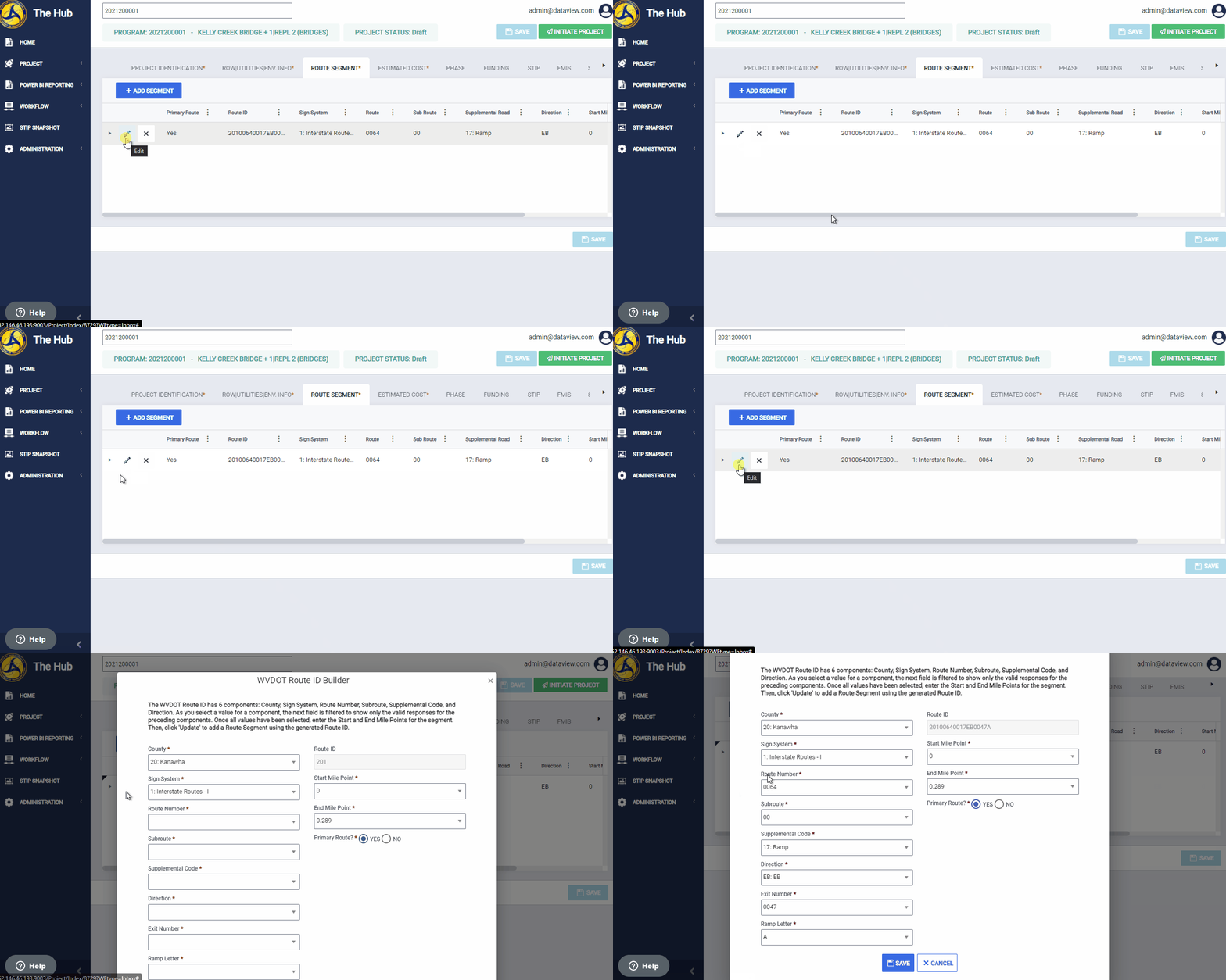
To edit any route segment, click the Pencil icon next to the route segment. This will open the WVDOT Route ID Builder for you to make edits.
Delete a Segment
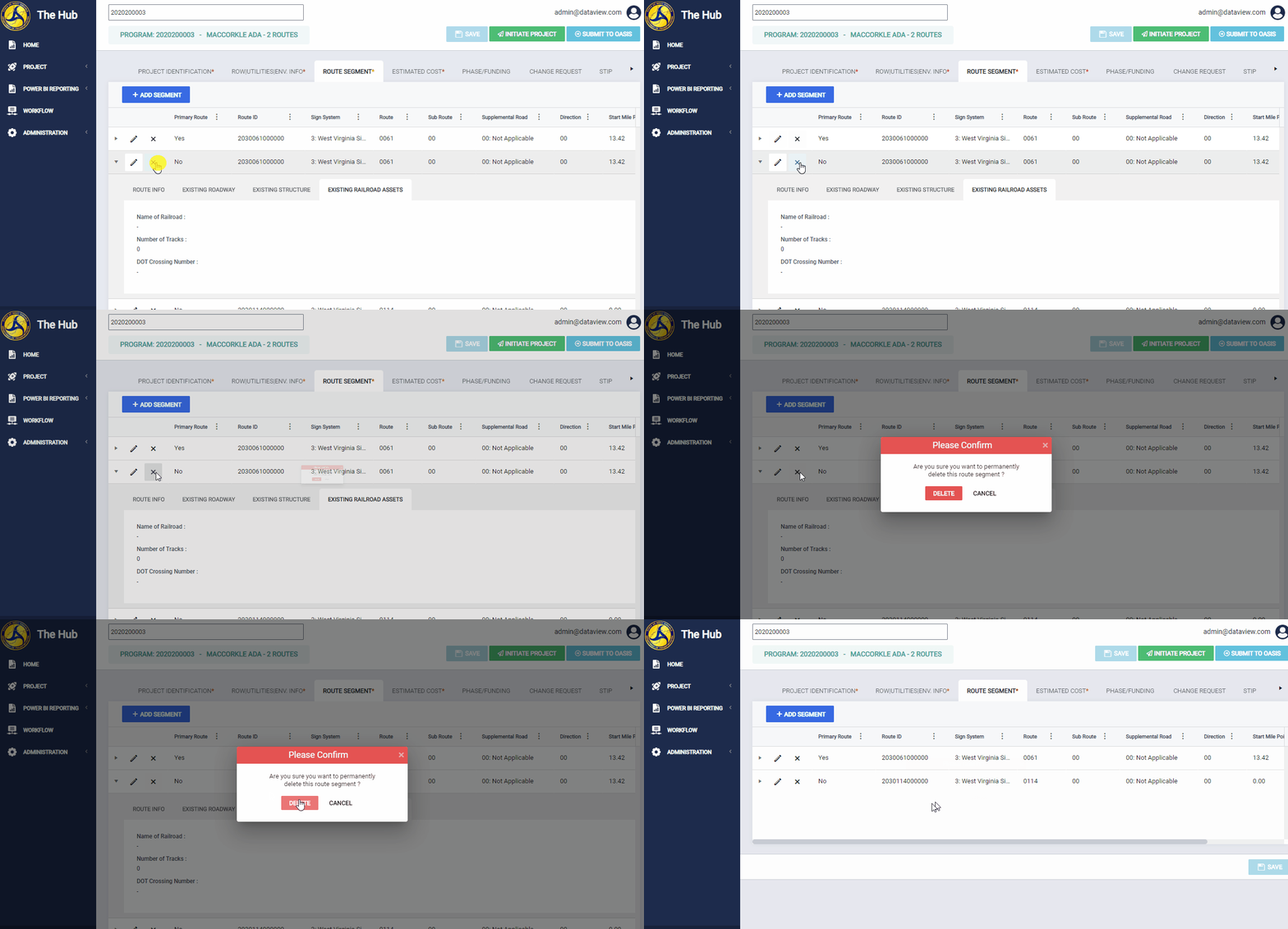
To delete any segment, click the Delete icon (X) next to any route segment. This opens a confirmation popup asking you to confirm the deletion. Click Delete to confirm.
View Route Information
Route segment information is pulled from the WVDOT Roadway Inventory Log. This information is updated twice a year.
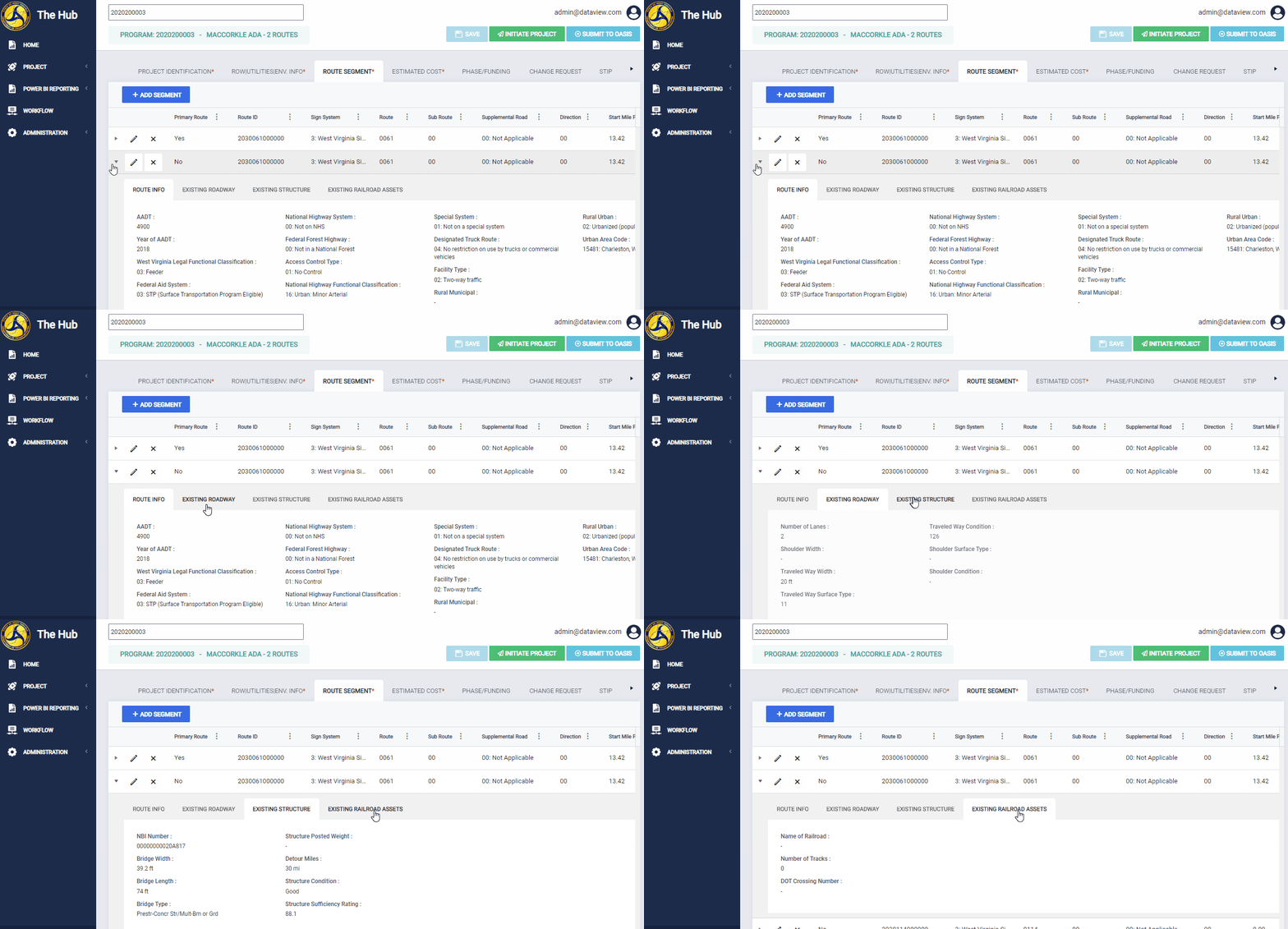
Click the arrow next to a route to expand this route information.
The fields below the example are available in the Hub and will populate for each route and start and end milepost with information from the WVDOT Roadway Inventory Log. If there is no information in the WVDOT Roadway Inventory Log, then the field will remain blank.
Route Info
- AADT
- Year of AADT
- West Virginia Legal Functional Classification
- Federal Aid System
- National Highway System
- Federal Forest Highway
- Access Control Type
- National Highway Functional Classification
- Special System
- Designated Truck Route
- Facility Type
- Rural Municipal
- Rural Urban
- Urban Area Code
Existing Roadway
- Number of Lanes
- Shoulder Width
- Traveled Way Width
- Traveled Way Surface Type
- Traveled Way Condition
- Shoulder Surface Type
- Shoulder Condition
Existing Structure
- NBI Number
- Bridge Width
- Bridge Length
- Bridge Type
- Structure Posted Weight
- Detour Miles
- Structure Condition
- Structure Sufficiency Rating
Existing Railroad Assets
- Name of Railroad
- Number of Tracks
- DOT Crossing Number
Comments
0 comments
Please sign in to leave a comment.