
Updated: 2/8/2023
Please note, the Hub application is under active development. As such, text and screenshots may quickly become out of date. If you have any questions about current Hub functionality, please reach out to your Hub contact directly.
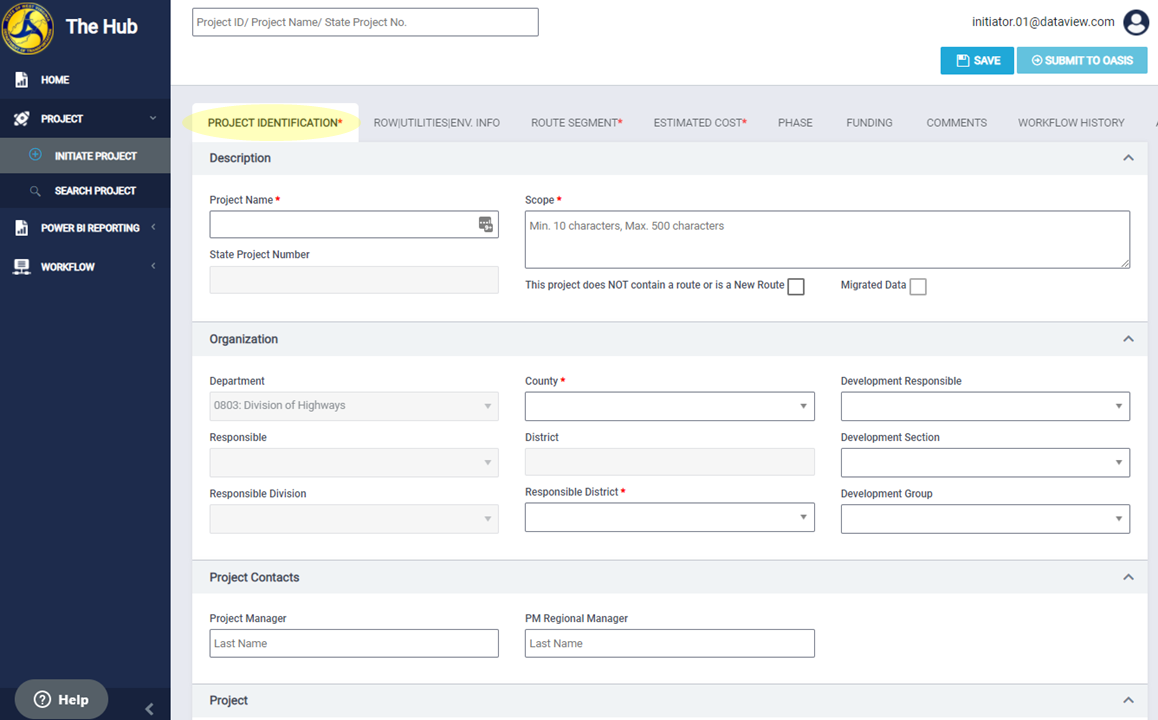
Navigate to the Project Identification tab
To navigate to this tab, click Project Identification on the tab strip within a project.
Use the Project Identification tab to enter basic information about a Project. Project Initiators must fill out the required information before submission in the Project Authorization Workflow.
This tab has the following sections:
Description

- Project Name: Use the Project Name field to enter a descriptive name for the project. Saving the project requires a Project Name and County.
- State Project Number: State Project Number is a key identifier for projects. This value must be unique. The Hub calculates this field using values selected for Initiation Category, Project Type, County, Primary Route, Primary Sub route, Primary Route - Beginning Mile Point, and the Calendar Year. Programming Supervisors can edit the State Project Number at the Programming Supervisor Review workflow step.
- Scope: Use the Scope field to describe the project. It needs between 10 and 500 characters. This is a required field. Initiators must add scope details before submitting the project for approval.
- This project does NOT contain a route or is a new route: Mark this field if the project is State, Countywide, does not contain a route, or is a new route. Marking this box removes the need to add a route for the project. Marking this field also enables the Sign System, Rural/Urban, Primary Federal-Aid System, Functional Classification, National Highway Functional Classification (NHFC), National Highway System (NHS) fields.
If this field is not marked, Initiators must add a route on the 'Route' tab and the above fields will be populated from the WV Roadway Inventory Log (RIL).
Organization
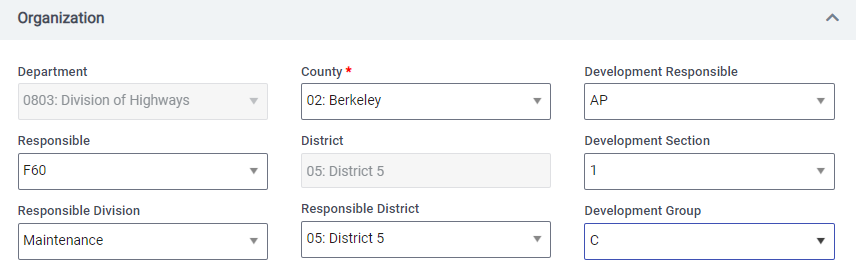
- Department: The Department field defaults to '0803: Division of Highways'. This field can not be edited.
- Responsible: Use the Responsible field to select the position in Programming Division responsible for the project. Users with the following roles can edit this field: hub.programming.supervisor, hub.programming.technician, hub.stip.manager, hub.fhwa.manager.
- Responsible Division: Division Initiators use the Responsible Division field to select a responsible division. Users with the hub.division.initiator role can edit this field.
- County: Use the County field to select the primary county where the work takes place.
- District: The District field is automatically populated based on the County selection. This field is disabled and can not be edited. To select a Responsible District for the project, use the Responsible District field.
- Responsible District: Use the Responsible District field to select the district responsible for the work. This field populates based on the county selected, but you can change it to any district desired.
- Development Responsible: Use the Development Group field to select the Development Group.
- Development Section: Use the Development Section field to select the Development Group.
- Development Group: Use the Development Responsible field to select the Development Group.
Project Contacts:

- Project Manager: Use the Project Manager field to add the name of the project manager for this project. Start typing the project manager's name. After three typed characters, you will see a drop-down list with the matching names or, if there are no matches, a message - ‘No data found’.
- PM Regional Manager: Use the PM Regional Manager field to add the name of the PM regional manager for this project. Start typing the PM regional manager's name. After three typed characters, you will see a drop-down list with the matching names or, if there are no matches, a message - ‘No data found’.
Project:
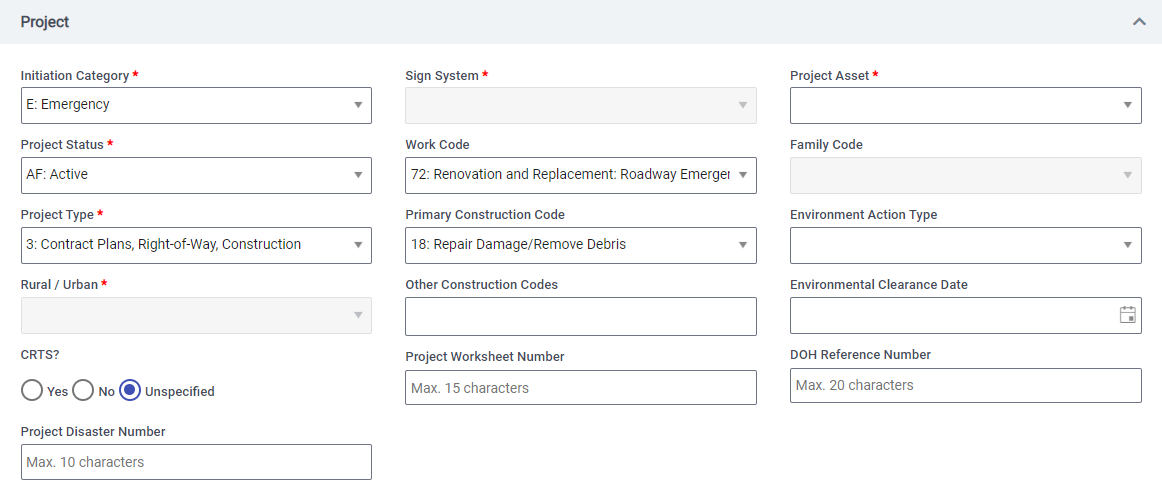
- Initiation Category: Use the Initiation Category field to select an Initiation Category.
- Project Status: Use the Project Status field to select a Project Status. For new projects, this defaults to "AF: Active". Users with the following roles can edit this field: hub.programming.supervisor, hub.programming.technician, hub.stip.manager, hub.fhwa.manager.
- Project Type: Use the Project Type field to select a Project Type.
- Rural/Urban: Use this field to indicate the Rural/Urban for the project. This field is disabled and populated automatically when a route is added to the project. If the "This project does NOT contain a route or is a New Route" field is marked then this field is enabled and you can select a Rural/Urban value.
- CRTS: Use this button to select if this is a Coal Resource Transportation System Road (CRTS). This is a radio button, and you can select Yes, No, or Unspecified.
- Sign System: Use this field to indicate the Sign System for the project. This field is disabled and populated automatically when a route is added to the project. If the "This project does NOT contain a route or is a New Route" field is marked then this field is enabled and you can select a Sign System.
- Work Code: Use the Work Code field to select a Work Code.
- Primary Construction Code: Use the Primary Construction Code field to select a Primary Construction Code.
- Other Construction Codes: Use the Other Construction Code field to select Other Construction Codes. The user is able to select multiple values from the dropdown.
- Project Asset: Use the Project Asset field to select a Project Asset. If Bridge is selected, then "New Bridge" and "Primary NBI Bridge" fields are shown.
- New Bridge?: Appears if "Bridge" is selected for the Project Asset. Use this field to indicate if a new bridge is being built for the project. The "Primary NBI Bridge" field will not be required if this field is marked.
- Primary NBI Bridge: Use this field to indicate the Primary NBI Bridge for the project. This field is disabled and populated automatically when a route with a bridge is added to the project. If the "This project does NOT contain a route or is a New Route" field is marked then this field is enabled and you can select a Primary NBI Bridge.
- Family Code: Use this field to select a Family Code. This field is only enabled once the project is sent to the Programming Review workflow state.
- Environmental Action Type: Use the Environmental Action Type field to select an Environmental Action Type.
- Environmental Clearance Date: Use the Environmental Clearance Date field to select an Environmental Clearance Date.
- Project Disaster Number: Use this field to enter a Project Disaster Number. This field can have up to 10 characters. It can only be edited by users with the hub.fema.coordinator role. When a change is made to this field, a warning is shown indicating that the change will be applied to all phases and change requests for the project.
- Project Worksheet Number: Use this field to enter a Project Worksheet Number. This field can have up to 15 characters. It can only be edited by users with the hub.fema.coordinator role. When a change is made to this field, a warning is shown indicating that the change will be applied to all phases and change requests for the project.
- DOH Reference Number: Use this field to enter a DOH Reference Number. This field can have up to 20 characters. It can only be edited by users with the hub.fema.coordinator role. When a change is made to this field, a warning is shown indicating that the change will be applied to all phases and change requests for the project.
Program:
The Program section allows the user to enter the following fields

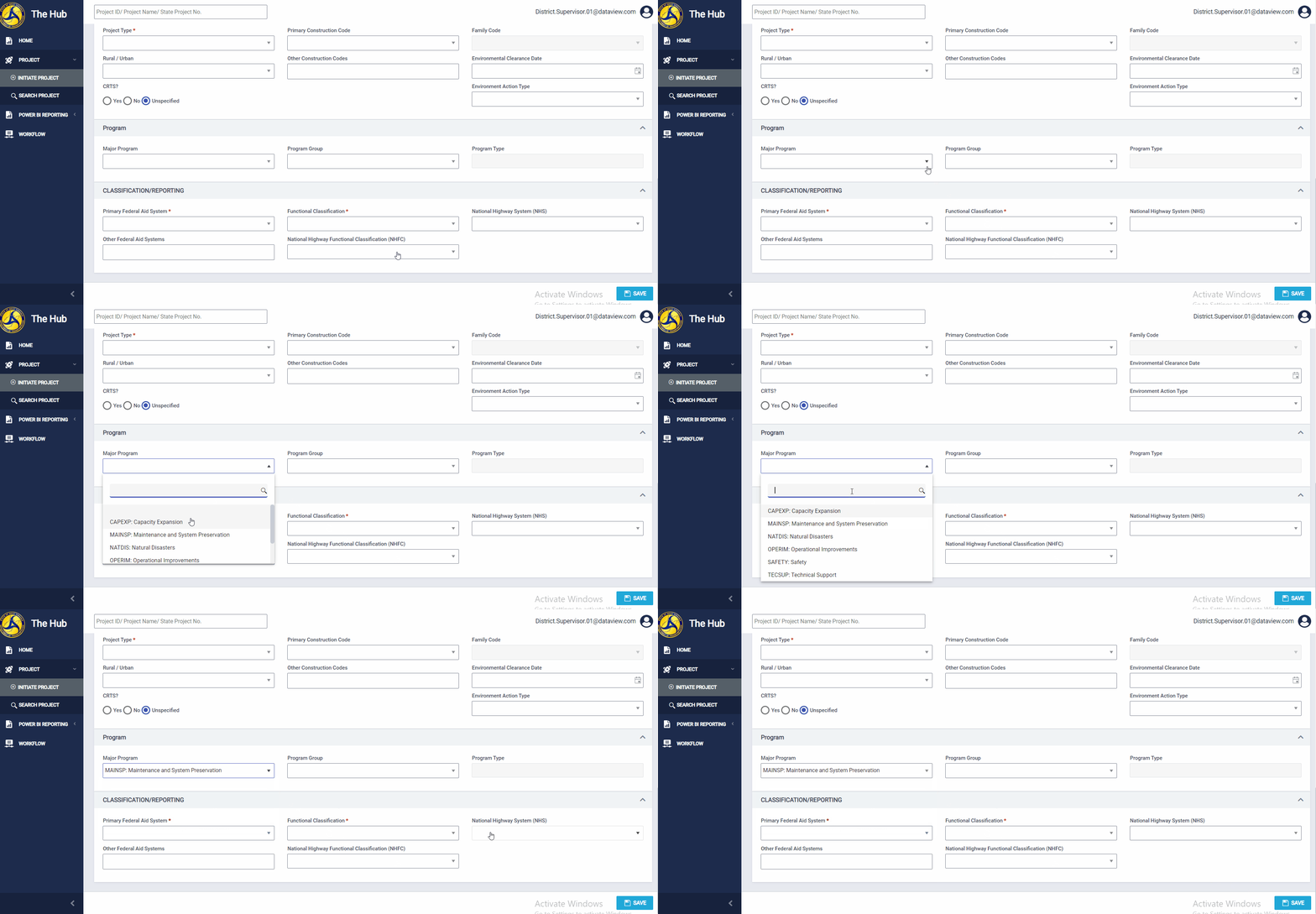
- Major Program: Use this field to select a Major Program. This field populates based on the value selected in "Work Code", but you can change it to any Major Program desired.
- Program Group: Use this field to select a Program Group.
- Program Type: Use this field to indicate the Program Type for the project. This field is disabled and populated automatically when a route is added to the project. If the "This project does NOT contain a route or is a New Route" field is marked then this field is enabled and you can select a Program Type value.
Classification/Reporting:
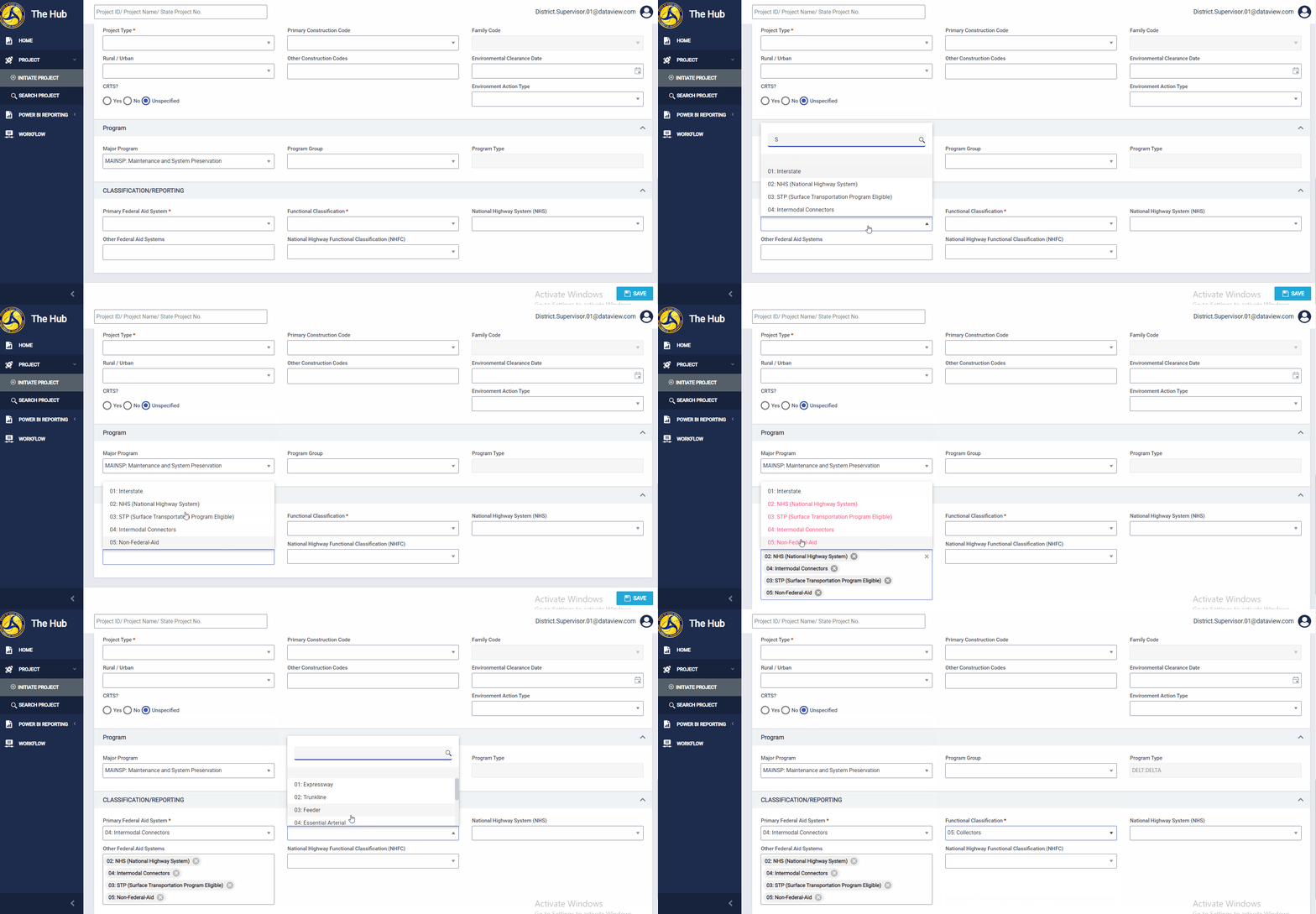
Unless the ‘This project does NOT contain a Route or is a New Route' checkbox is checked, the fields in this section are populated by the RIL data for the Primary Route added by the user on the ROUTE SEGMENT tab (see How to: Route Segment Tab)
- Primary Federal Aid System: Use this field to indicate the Primary Federal Aid System for the project. This field is disabled and populated automatically when a route is added to the project. If the "This project does NOT contain a route or is a New Route" field is marked then this field is enabled and you can select a Primary Federal Aid System value.
- Other Federal Aid Systems: Use this field to indicate other Federal Aid Systems for the project.
- Functional Classification: Use this field to indicate the Functional Classification for the project. This field is disabled and populated automatically when a route is added to the project. If the "This project does NOT contain a route or is a New Route" field is marked then this field is enabled and you can select a Functional Classification value.
- National Highway System (NHS): Use this field to indicate the National Highway System for the project. This field is disabled and populated automatically when a route is added to the project. If the "This project does NOT contain a route or is a New Route" field is marked then this field is enabled and you can select a National Highway System value.
- National Highway Functional Classification (NHFC): Use this field to indicate the National Highway Functional Classification for the project. This field is disabled and populated automatically when a route is added to the project. If the "This project does NOT contain a route or is a New Route" field is marked then this field is enabled and you can select a National Highway Functional Classification value.
- TAMP Classification: The Transportation Asset Management Plan (TAMP) Classification is determined by the type of work and the Federal Aid System on which the work is performed. This value is inferred from values selected by the user and is never editable. The first two characters are based upon the Construction Code selected and the last character is dependent on the Federal Aid System.

Notes
- When a project is in 'Project Authorized' status, and CAS or CAM is not in process and CAS is not rejected, then only the below fields should be editable by users with the hub.programming.technician role. All other project-level fields are disabled.
-
Responsible
-
Development Responsible
-
Development Section
-
Development Group
-
Project Manager
-
PM Regional Manager
-
Project Status
-
Family Code
-
Environment Action Type
-
Environmental Clearance Date
-
- When a CAS is rejected, then the below project identification fields are editable by users with the role: hub.programming.supervisor. All other project-level fields are disabled
- Responsible
- Development Responsible
- Development Section
- Development Group
- Project Manager
- PM Regional Manager
- Project Status
- Work Code
- Primary Construction Code
- Other Construction Codes
- Major Program
- Program Group
- Family Code
-
- All other Project data fields, excluding Project Status, are disabled
- Add Route Segment is disabled
- Edit Route Segment is disabled
- Delete Route Segment is disabled
- Add Phase is disabled
- Initiate Phase is disabled
- Edit Phase is disabled
- Delete Phase is disabled
- Add Change Request is disabled
- Initiate Change Request is disabled
- Edit Change Request is disabled
- Delete Change Request is disabled
- Add Schedule is disabled
- Edit Schedule is disabled
- Delete Schedule is disabled
- Add STIP is disabled
- Edit STIP is disabled
- Delete STIP is disabled
- Edit FMIS is disabled
- Upload CPM is disabled
If a Project is saved with a Project Status code = '10' then:- Add Phase is disabled
- Initiate Phase is disabled
- Edit Phase is disabled
- Delete Phase is disabled
- Add Schedule is disabled
- Edit Schedule is disabled
- Delete Schedule is disabled
- Upload CPM is disabled if a Project is saved with a Project Status code in ('AI', 'HF', 'HI', '11', '12', '13', '14', '15')
- Two additional State Project Numbers are formulated when approved by the Programming Supervisor:
-
- Unformatted State Project Number removes all non-numeric/alphabetic characters such as the dash "-", slash "/" and decimal point "." as well as all spaces.
- REMIS Formatted State Project Number removes all non-numeric/alphabetic characters such as the dash "-", slash "/" and decimal point ".", but leaves the spaces in place so that formatting in REMIS will be fairly consistent with the legacy formatting.
-
- Users with the hub.super.user role can edit and save the below fields on authorized projects:
- Start Mile Point
- Total Miles
- Sign System
- Work Code
- Primary Construction Code
- New Bridge checkbox
- Primary NBI Number
- Rural-Urban
- Primary Federal Aid System
- Functional Classification
- National Highway System
- Other Federal Aid Systems
- National Highway Functional Classification
Comments
0 comments
Please sign in to leave a comment.