
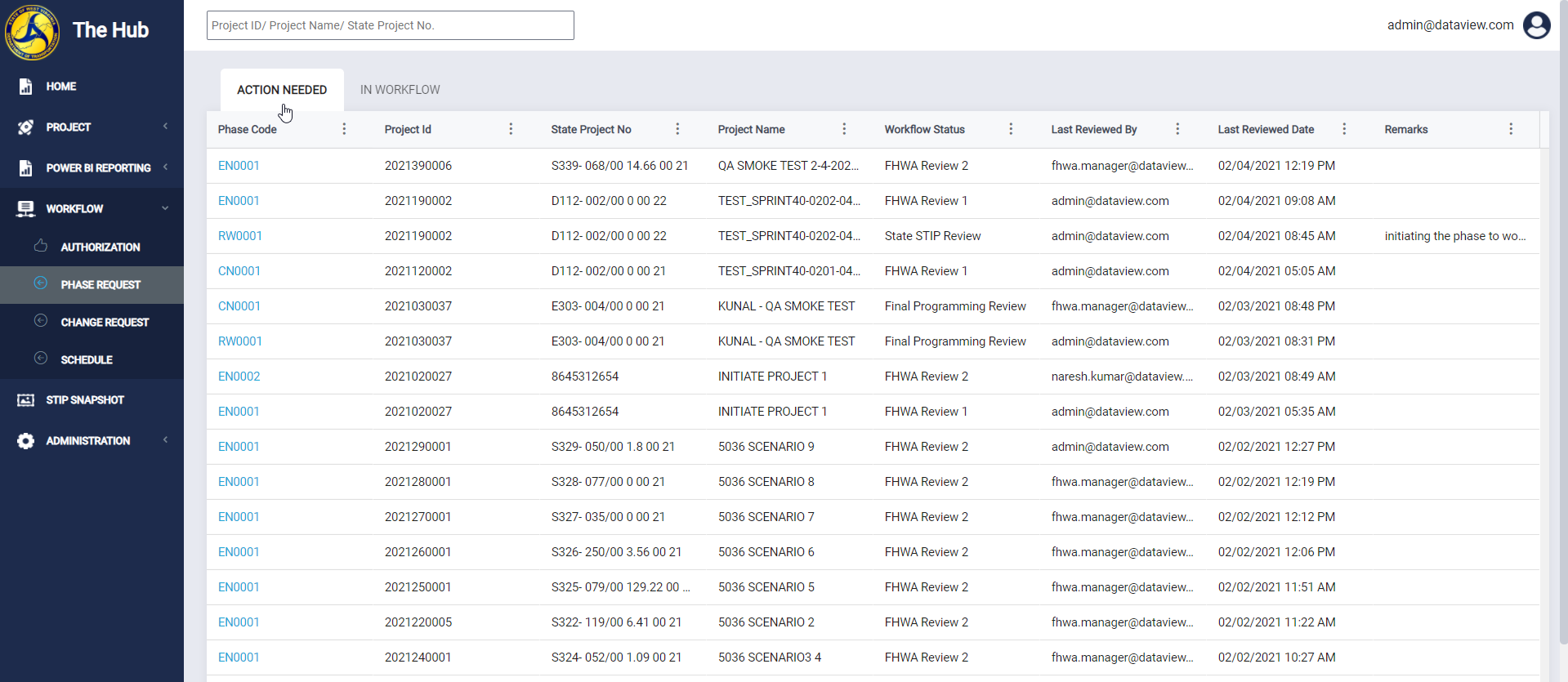
You can access phases in workflow when you sign into the HUB by navigating to the Phase Request tab under the Workflow menu item. Here you will be able to view phases in your workflow queue. This step remains the same for all the users that will access a given phase(es) throughout it's lifecycle.
You can initiate a phase into workflow if you have the Programming Technician role. Once the project is in 'Awaiting Authorization' status, you can initiate the phase into workflow as shown in the flow below.
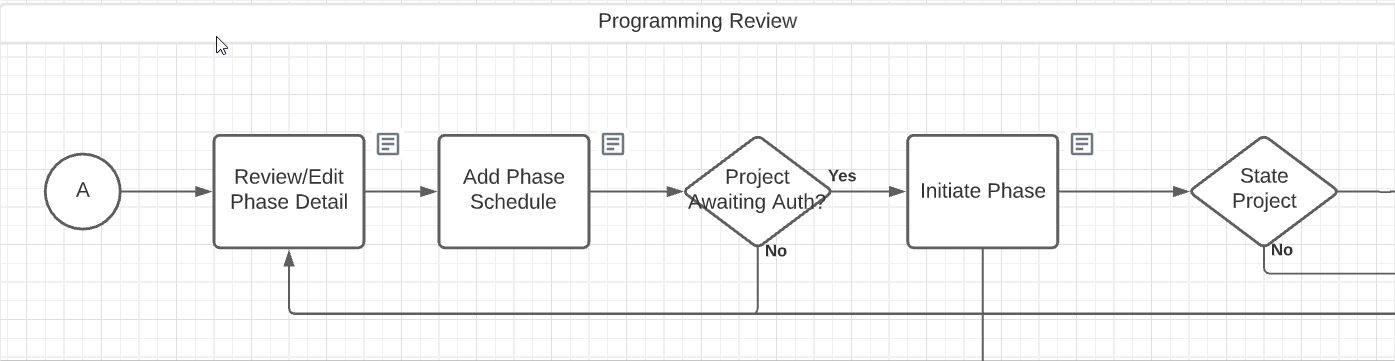
Before a phase can be initiated into workflow, you will have to add a schedule and milestone dates. This can be done on the Scheduling tab. After the schedule and milestone dates have been added, click the green arrow button  to initiate the phase into workflow.
Federal Phase Workflow Path
Federal Phases follow the workflow path as described below.
Federal STIP Review
Once submitted to workflow, the Federal phase will go to Federal STIP Review. Users with a Federal STIP Coordinator role can log in, review the phase and add STIP information.
Click the pencil icon  on CR-0 to open and review the phase. Edits can be made if desired. Click the red thumbs down button
  to reject the phase. Click the green thumbs up button
  to approve the phase.
Federal STIP Coordinators are required to add STIP details at this step.
The following STIP information is required when adding a STIP record for the phase on the STIP tab.
- Phase Code - CR No.
- STIP Amendment
- STIP Administrative Modification
For more information about adding STIP information, see the article: Adding STIP information.
FHWA Review 1
Once approved at Federal STIP Review, the Federal phase will go to FHWA Review 1.
Users with the FHWA Technician role can log in, review the phase, add FMIS information, and allocate funding.
Phases cannot be edited at this stage. Once change requests are merged, the phase cannot be rejected at this stage. Click the green thumbs up button to approve the phase once required information is entered.
The following FMIS fields are required at this step:
- Project Type required
- Project Oversight required
- No GIS Reason required (If the 'No Route' checkbox is selected on the project)
The phase participating/non-participating amounts are also required to be fully allocated before approval at this step.
For more information about adding FMIS Information, see the article: Add FMIS information.
For more information about adding Funding Lines, see the article: Adding Funding Information.
FHWA Review 2
Once approved at FHWA Review 1, the Federal phase will go to FHWA Review 2.
Users with the FHWA Manager role can log in, review the phase, add/edit FMIS information, and add/edit funding line(s) for the phase. The phase can also be submitted to FMIS at this stage.
Click the red thumbs down button to reject the phase. Once any change requests are merged, the phase can only be rejected to FHWA Review 1. Click the right arrow  to submit the phase to FMIS. Click the green thumbs up button to approve the phase.
The phase needs to be authorized, submitted to FMIS, and FMIS approved before it can be approved to the next step in the workflow.
For more information about adding FMIS Information, see the article: Add FMIS information.
For more information about adding Funding Lines, see the article: Adding Funding Information.
Submitting a Phase to FMIS for Review or Approval
To submit a phase to FMIS, click the green right arrow button (FMIS Review). Once clicked, the FMIS Review pop-up is presented. If you are ready to submit the phase for approval from FHWA, select all Change Requests you wish to be included and click SUBMIT without checking the "Review Required?" box.
If you would like to review the phase with FHWA prior to submitting for approval, check the "Review Required?" box and then click SUBMIT.
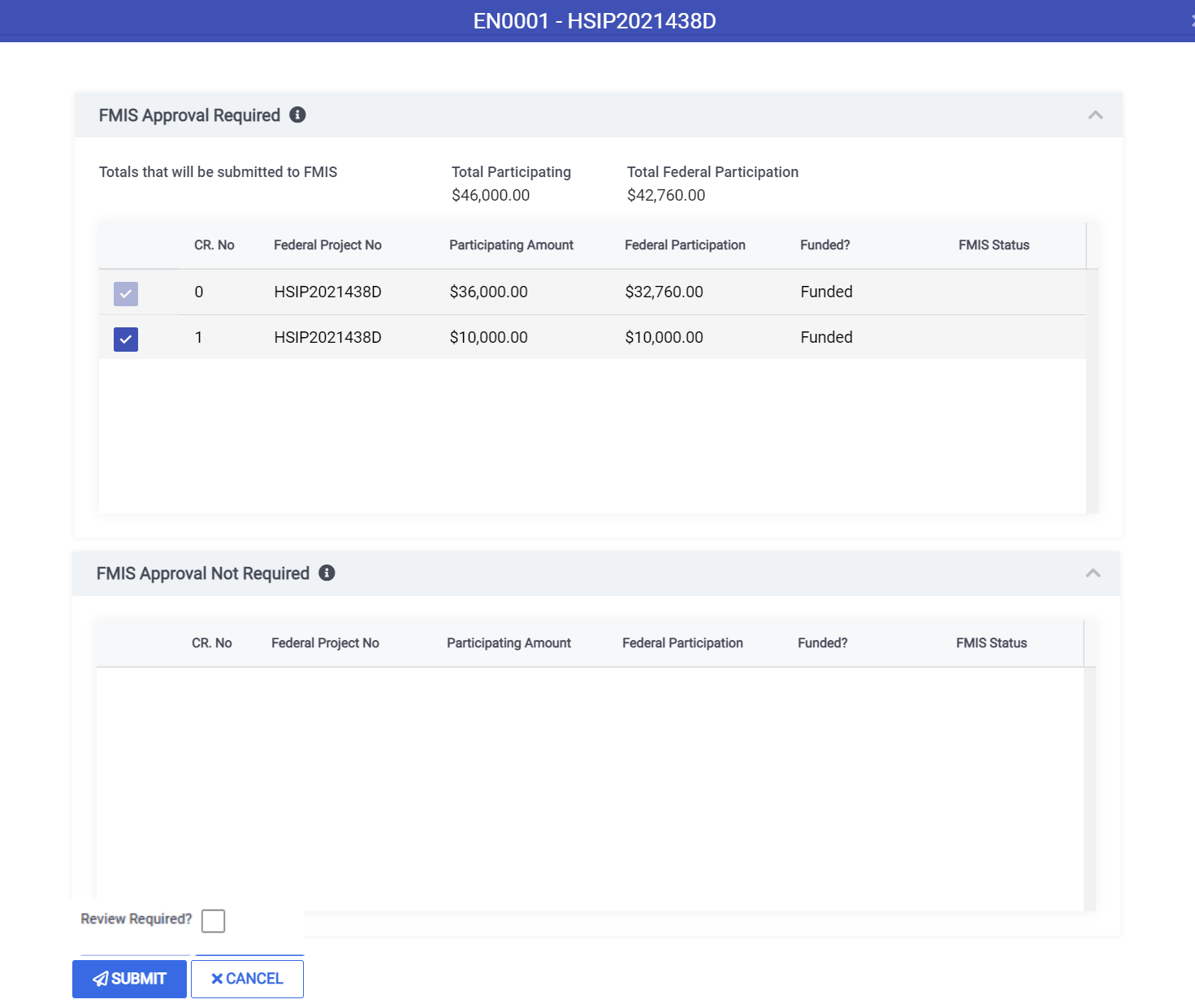
At least one change request included in the FMIS submission of an estimated phase must be set to 'Authorized', i.e. an authorization request is required to submit an estimated phase for FMIS approval. Once FMIS approves the phase and any accompanying change requests then it may be approved to the next step in the workflow.
Once the phase has been approved in FMIS, phase start date will be updated to reflect the FMIS approval date. Also, the phase start date on any existing change requests will be updated to this date and the ability to update the start date through a future change request will be disabled.
Federal Change Request Merging
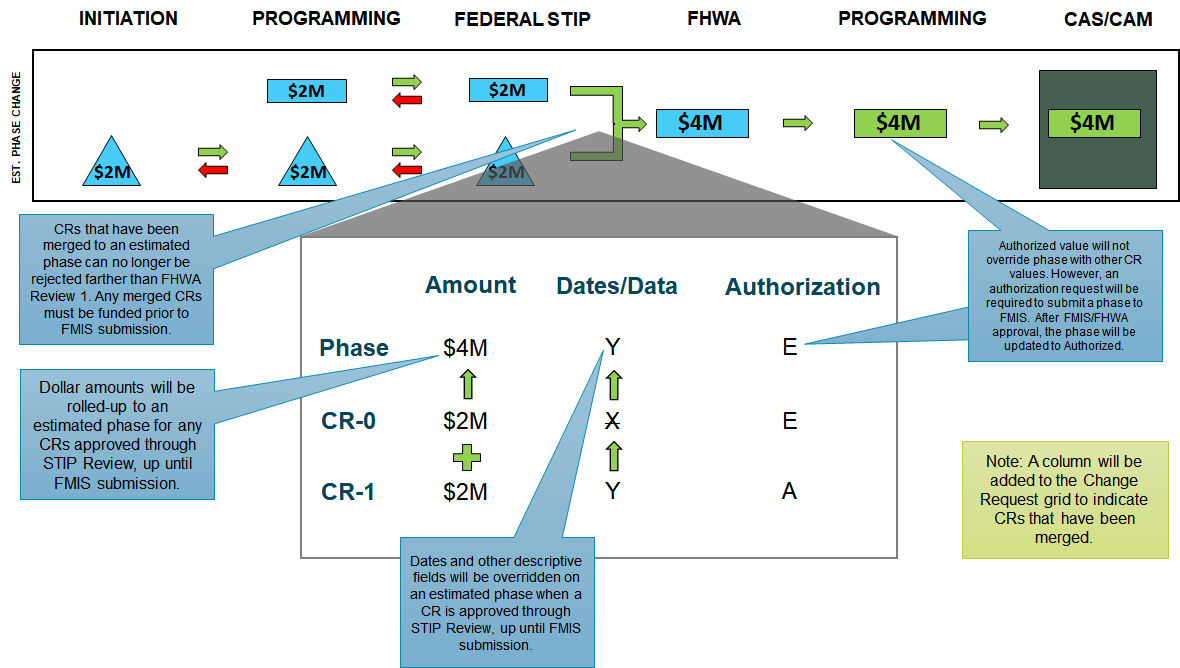
After approval at STIP Review, when the phase is still estimated and not yet sent to FMIS, all data except for the Estimated/Authorized fields will merge to the Project Phase. This includes data such as change request dollars, dates, and other data.
Once merged, these change requests can not be rejected prior to FHWA Review 1 on estimated phases, to ensure data integrity.
After approval at STIP Review, edits to the Phase Change Request data are locked. For estimated phases, a new change request will have to be added to update phase data. For authorized phases, CRs can be rejected in workflow to STIP or prior steps for edits.
Merged change requests will be marked 'Yes' in the 'Merged' column on the Phase Change Request grid.
An example of this data flow is shown below:
Example of a Federal Change Request Merge
The final approval for the federal phase is final programming. Users with Programming Technician privileges will be able to approve this phase to be included in a CAS or CAM. The final status will be request approved.
State Project Workflow Path
State STIP review
Once submitted to workflow, the State change phase will go to State STIP Review. Users with a State STIP Coordinator role can log in and review the phase.
Click the pencil icon on CR-0 to open and review the phase. Edits can be made if desired. Click the red thumbs down button to reject the phase. Click the green thumbs up button to approve the phase.
State STIP Coordinators are not required to add STIP details at this step.
Change Request Information is merged after approval stage. See the section below for more information about merging: State Change Request Merging.
State Change Request Merging
After approval at STIP Review, when the phase is still estimated, all data except for the Estimated/Authorized fields will merge to the Project Phase. This includes data such as change request dollars, dates, and other data.
Once merged, these change requests can not be rejected prior to State STIP Review on estimated phases, to ensure data integrity.
After approval at STIP Review, edits to the Phase Change Request data are locked. For estimated phases, a new change request will have to be added to update phase data. For authorized phases, change requests can be rejected in workflow to STIP or prior steps for edits.
Merged change requests will be marked 'Yes' in the 'Merged' column on the Phase Change Request grid.
Example of a State Change Request Merge

Final Programming
Once approved at Federal or State STIP Review the phase will will go to Final Programming. Users with Programming Technician privileges can approve phases at this state.
Click the green thumbs up button to approve the phase. Federal phases cannot be edited or rejected at this workflow state. State phases cannot be edited but can be rejected until any change requests have been merged.
State Phase
Comments
0 comments
Please sign in to leave a comment.