
Adding a Change Request
Once a phase (see Adding a Project Phase) has been initiated to workflow, a change request can be added for that phase. Change requests allow you to request modifications to phase information such as funding amounts, phase start and end dates, and authorization status.
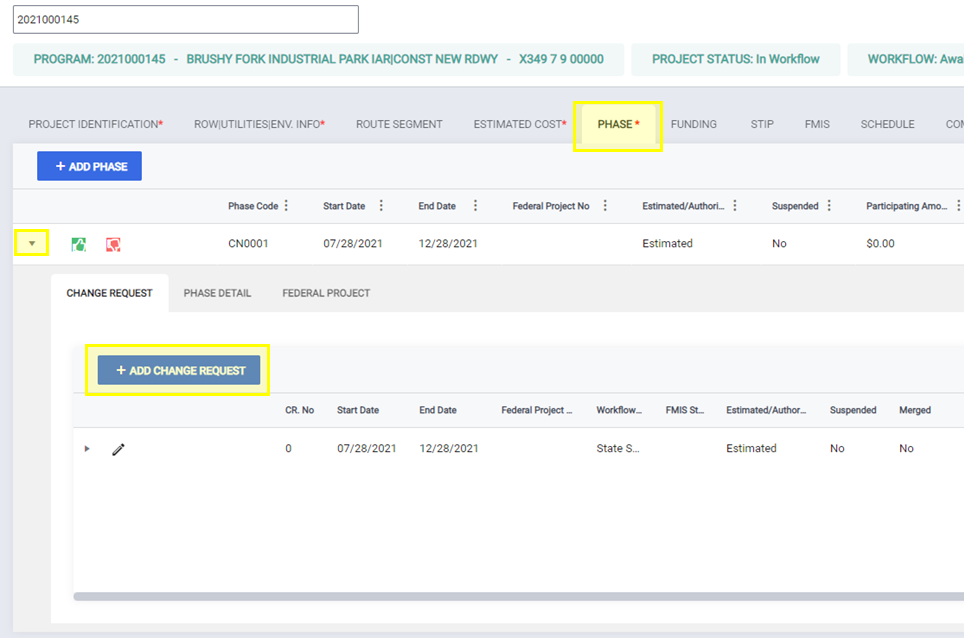
To add a change request, navigate to the Phase Tab for your project. On the Phase Tab, you will see all phases that have been added to the project. First, click the arrow on the left of the phase to expand it, then click + ADD CHANGE REQUEST button under the phase. This will open the New Change Request popup.
On this popup you can enter values into any of the enabled fields to begin putting together your change request. Requests can be made to update fields such as participating and/or non-participating amounts, phase detail information and federal project information. The fields you can request updates to may differ depending on your user permissions.
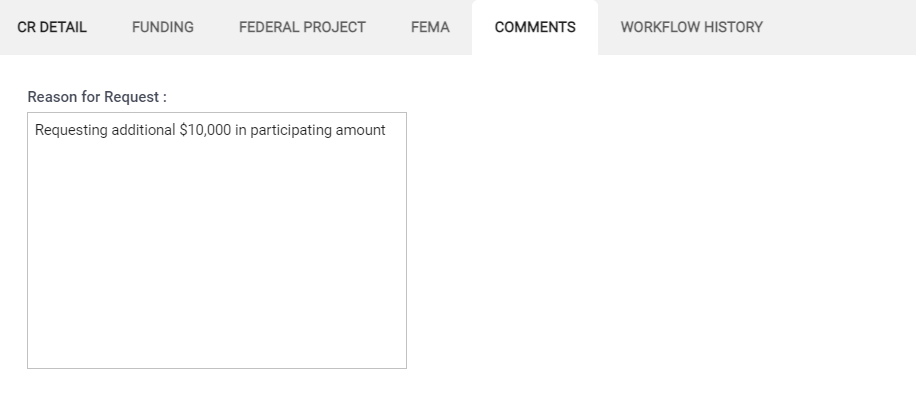
The only required field for a change request is the 'Add Comment' field, this field is used to provide additional details about why the change is being requested.

Once a change request is created it must be initiated to the Change Request Workflow. Once you have saved the change request, a popup reminds you to notify your supervisor that a change request has been created, if needed.

NOTE: Change requests can only be deleted when in draft state. Once the initiate action is taken to submit them into workflow, they can no longer be deleted.
NOTE: Once a project phase has been approved in FMIS, the federal project prefix cannot be changed to a prefix in ('???', 'OCRO', 'FEMA'), since these prefixes are associated with processes outside of the FMIS workflow.
Quickly Viewing Change Request Details
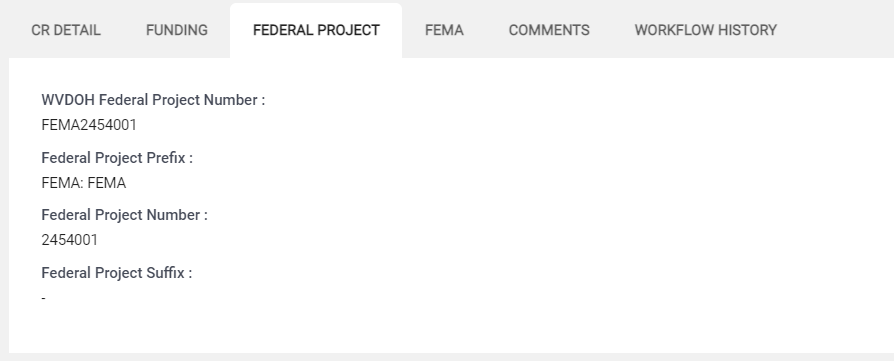
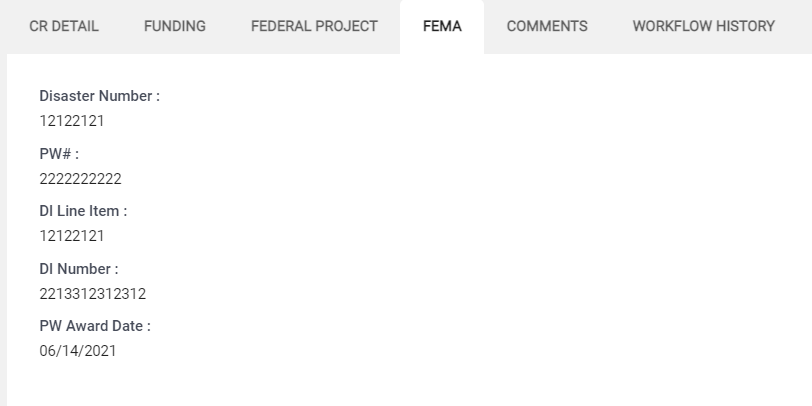
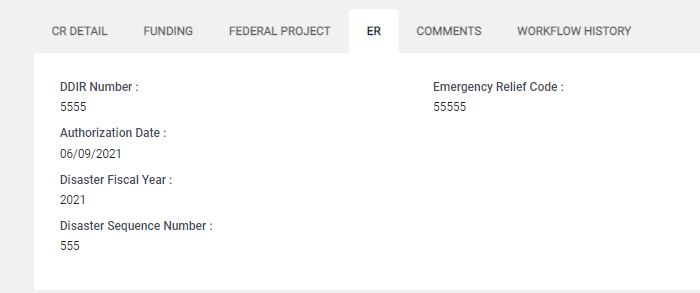
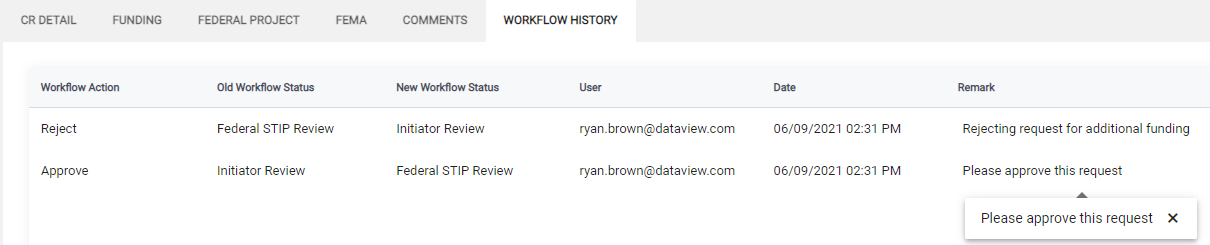
The details of a change request can be quickly viewed in detail tabs by expanding the row in the change request grid for a specific change request. To do this, navigate to the change request and click the arrow to the left of the action button area. This will expand the change request row. Once it has been expanded, you will see tabs for CR Detail, Funding, Federal Project, FEMA (if the change request has FEMA information), ER (if the change request has ER information), Comments, and Workflow History.
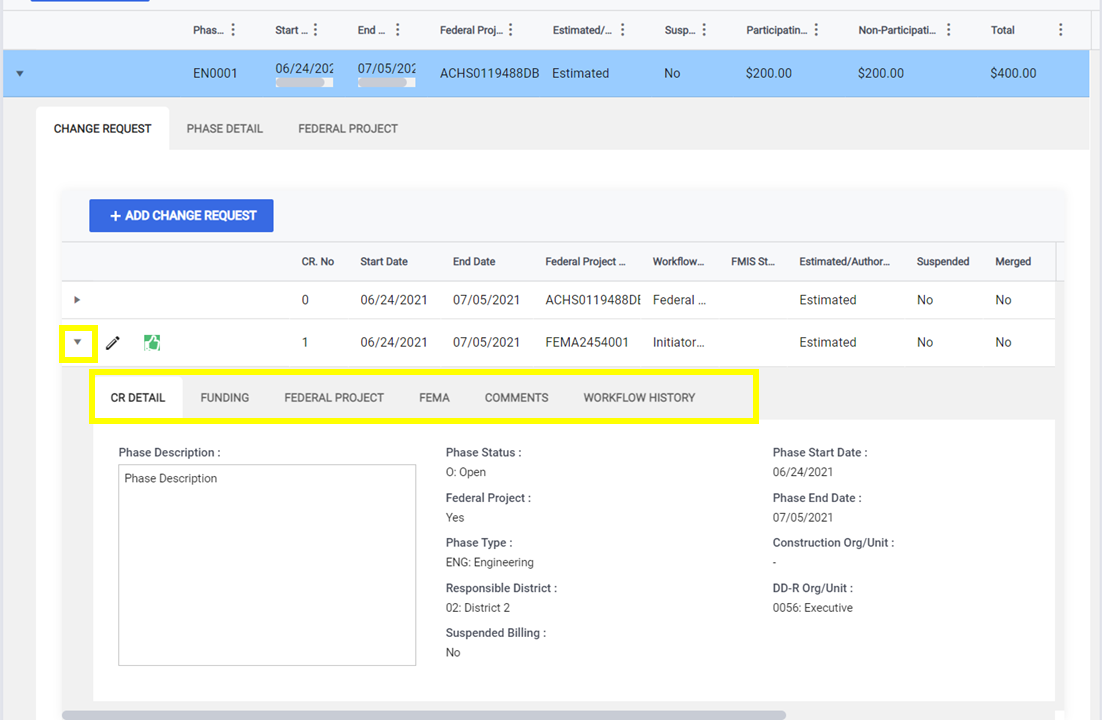
Click any of these tabs to quickly see details about the change request.
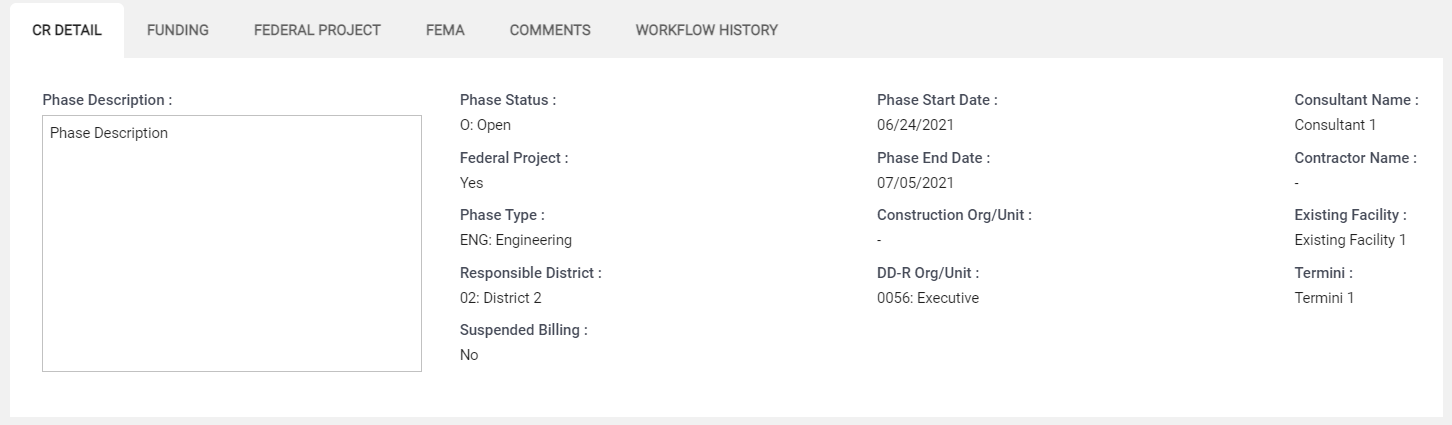
CR Detail
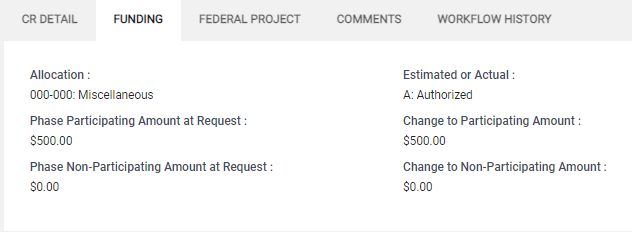
Funding
Federal Project
FEMA
ER
Comments
Workflow History
Comments
0 comments
Please sign in to leave a comment.