
Updated 1/27/2021
Please note, the Hub application is under active development. As such, text and screenshots may quickly become out of date. If you have any questions about current Hub functionality, please reach out to your Hub contact directly.
The Workflow pages in the Hub will allow you to view all items that are ready for action in your queue, as well as view any items in workflow you have previously taken action on.
Workflow actions (Approvals and Rejects) can only be taken on an item by opening it through a Hub workflow page.
Navigating to a Workflow Page
To navigate to a Workflow page, click Workflow in the Hub's left side menu. This will expand the Workflow menu to reveal the different workflow pages.
There are four workflow pages, corresponding with the four workflows in the Hub:
- Authorization: Projects that have been submitted for approval
- Phase Request: Phases that have been submitted for approval
- Change Request: Change Requests that have been submitted for approval
- Schedule: Milestone Date Change Requests that have been submitted for approval
Clicking on one of the listed items will open that workflow page.
Action Needed
There are two tabs on each workflow page, Action Needed and In Workflow.
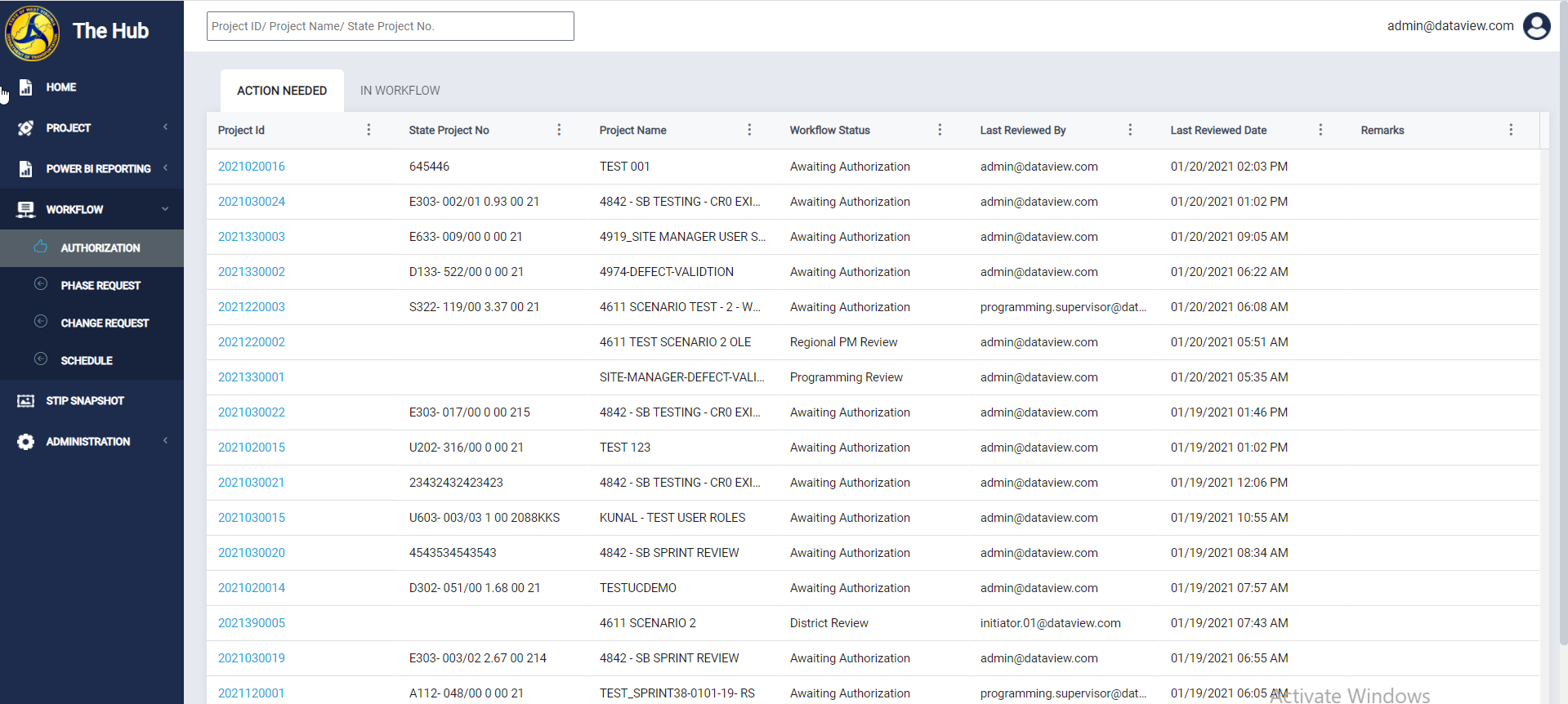
The Action Needed tab allows you to view all items you can currently take action on in that workflow, per your user permissions.
You can open an item in your queue by clicking on the blue link in the first column of that item's row. The contents of the first column will vary between each workflow page but will always contain this link.

After an item has been opened through the Action Needed tab, its workflow actions will become available.
In Workflow
The In Workflow tab allows you to view any items that you have previously taken an action on. Items on this page can be opened the same way, by clicking on the blue link in the first column for the desired row.
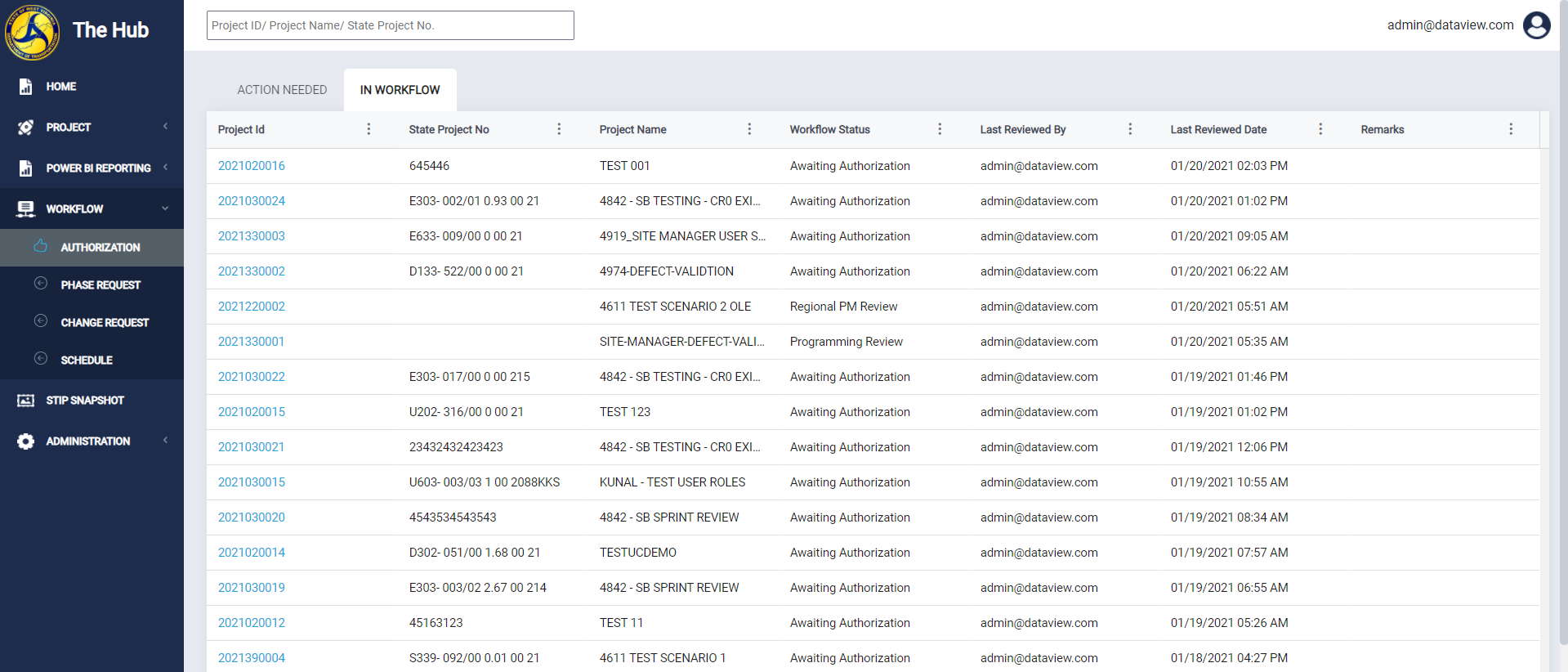
Workflow actions will not be available for items opened through the In Workflow tab.
Note: Tables in the Hub can be sorted or filtered by clicking on the three dots at the top of each column. This could be useful when looking for specific items on a workflow page.
Comments
0 comments
Please sign in to leave a comment.