
6/15/2022
Please note, the Hub application is under active development. As such, text and screenshots may quickly become out of date. If you have any questions about current Hub functionality, please reach out to your Hub contact directly.
Accessing the Business Intelligence Page
The 'Business Intelligence' menu item will allow you access both Power BI and paginated reports.
This is a menu item on the left hand menu of the HUB application.
Once clicked, it will navigate you to a new page.
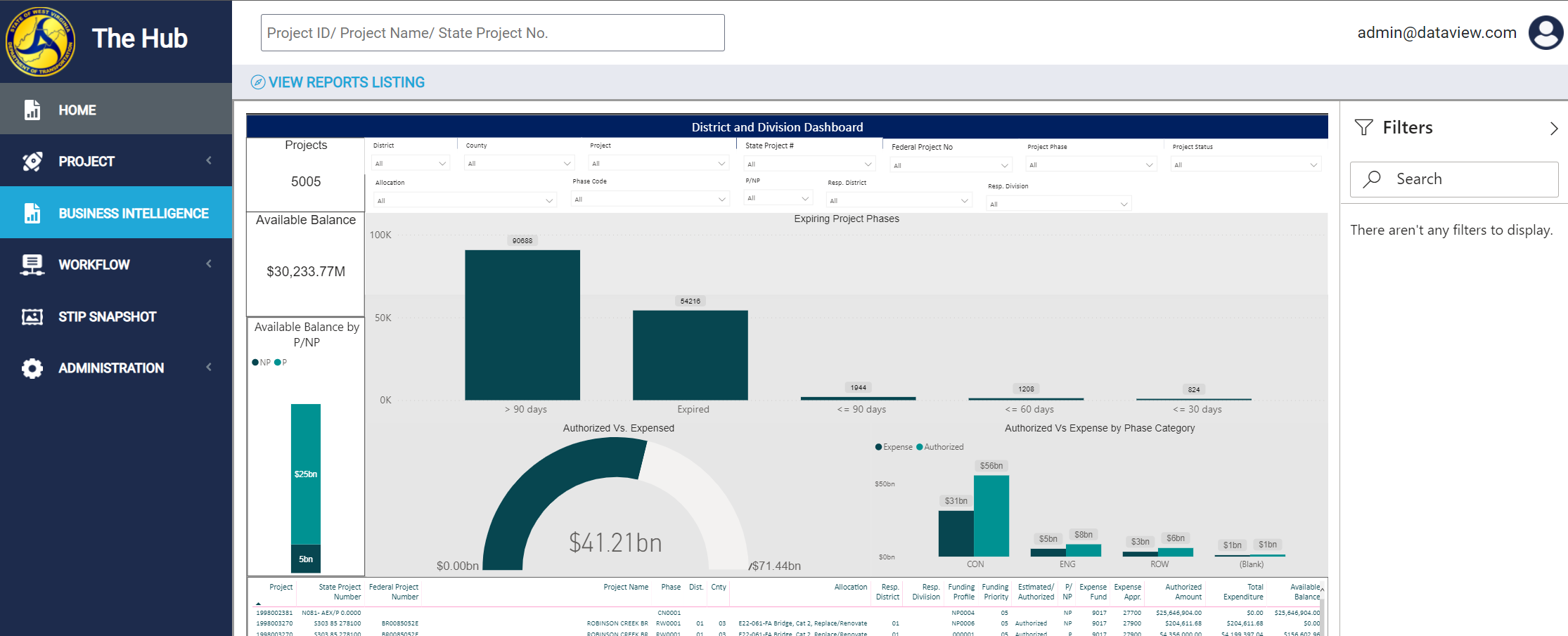
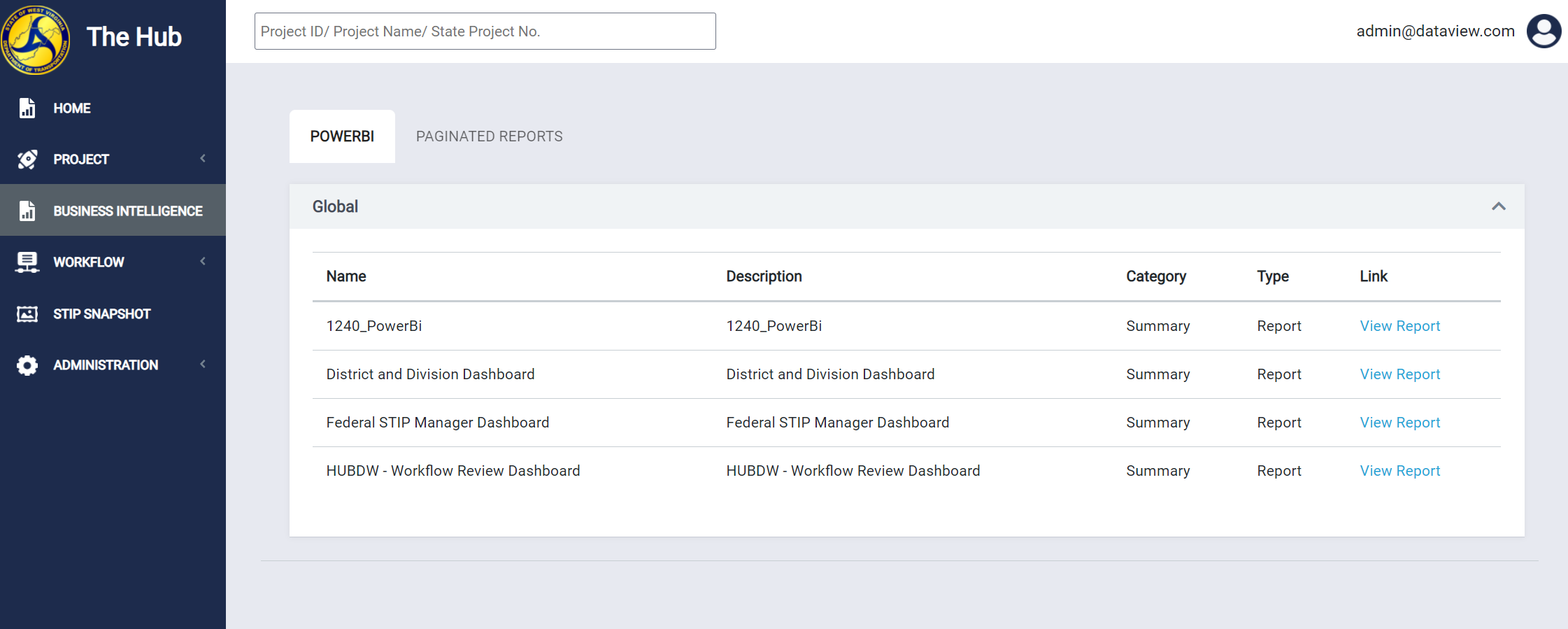
This page has two tabs. Power BI and Paginated Reports.
- The Power BI tab will display a list of all Power BI reports that have been added to the Hub application. Power BI reports are optimized for data exploration and interactivity. These reports are ideal for analytic reports, enabling users to explore data, and to discover relationships and patterns within it. Click 'View Report' to navigate to the Power BI report.
- The Paginated Reports tab will display a list of all Paginated Reports that have been added to the Hub application. Power BI paginated reports are optimized for printing, or PDF generation. They also provide you with the ability to produce highly formatted layouts. Paginated reports are ideal for operational reports. Click 'View Report' to navigate to the paginated report.
Exporting a Dashboard to PDF
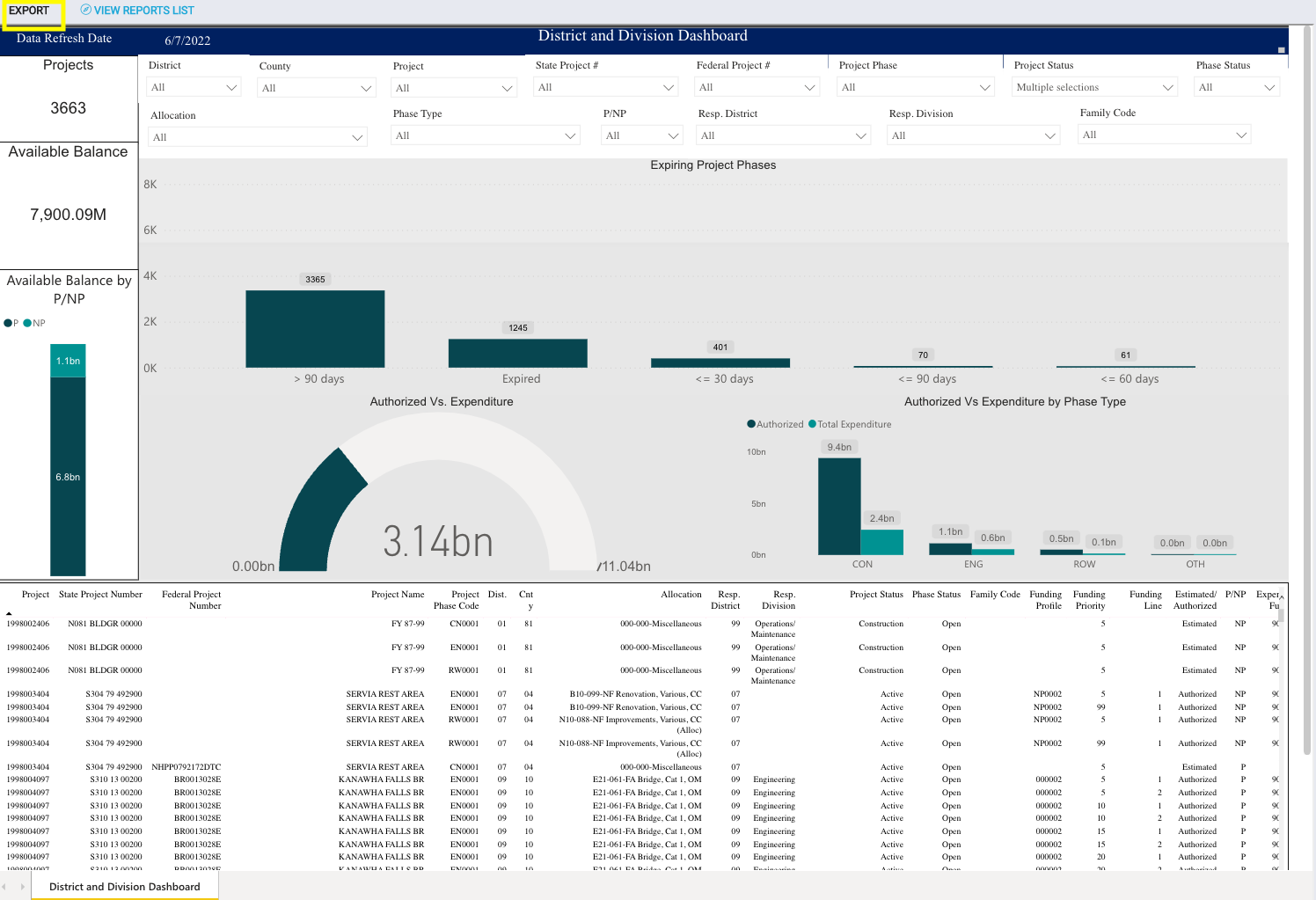
Each Power BI Dashboard has the option to export a dashboard to PDF. To do this, navigate to a dashboard and click the 'Export' button at the top of the page. After clicking this button, a PDF file mirroring the report on screen will be generated.
Note: Please you must allow popups on the Hub application or this functionality will not work.
How to allow pop-ups in Google Chrome
Comments
0 comments
Please sign in to leave a comment.