
Updated 2/4/2021
Please note, the Hub application is under active development. As such, text and screenshots may quickly become out of date. If you have any questions about current Hub functionality, please reach out to your Hub contact directly.
Hub’s Advanced Search Feature lets you search for projects using various fields in the application.
You can search on a single field or combine several fields to find the project(s) you are looking for.
Once you have the list of projects matching your criteria, you can choose to view the project, edit the project, or copy the project. You can also export these search results to Microsoft Excel.
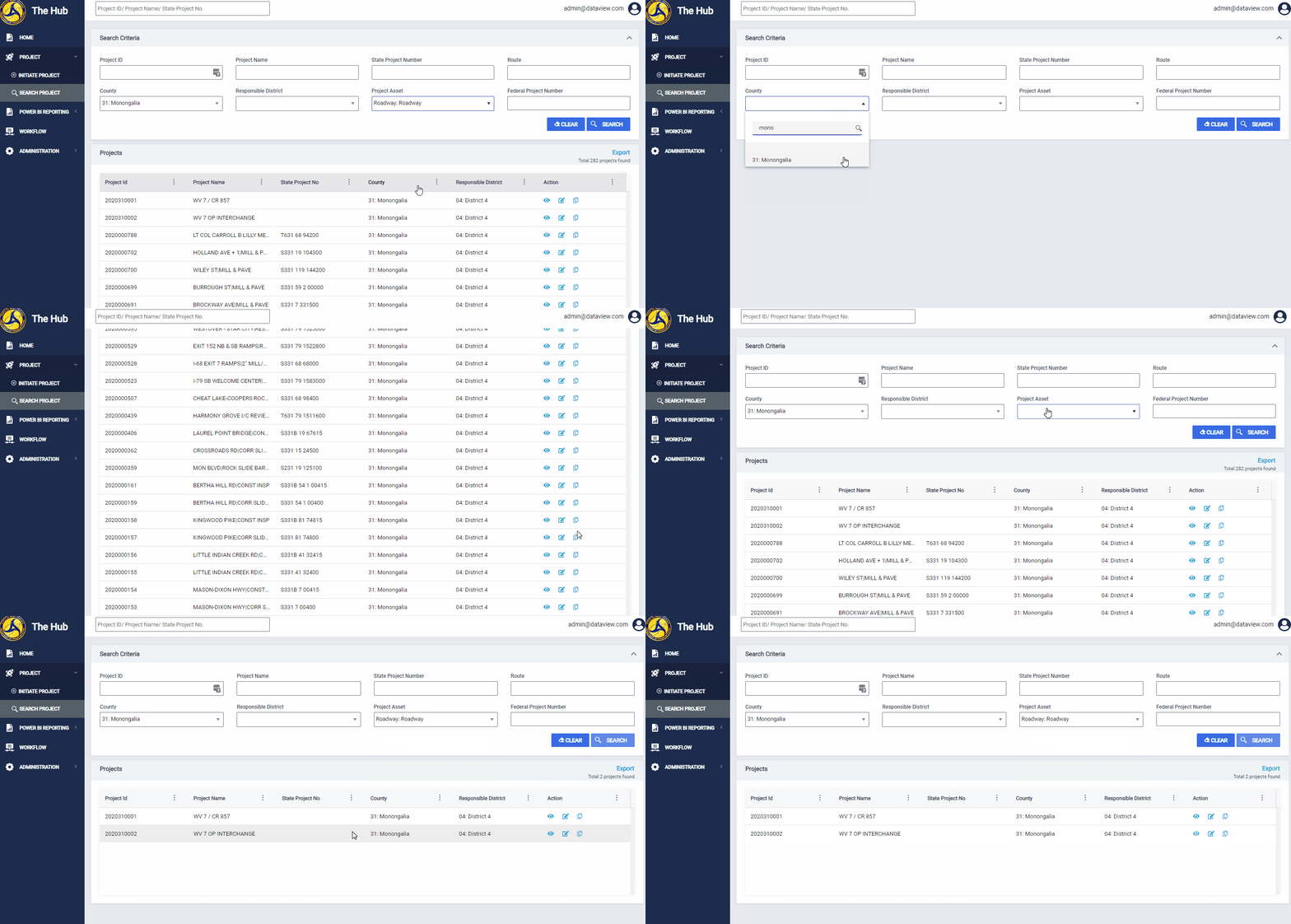
Navigating to the Advanced Search page
To navigate to Hub's Advanced Search Page, click Project in the Hub's left side menu. This will expand the Project menu to reveal the Search Project menu item. Click Search Project to go to Hub's Advanced Search Page.
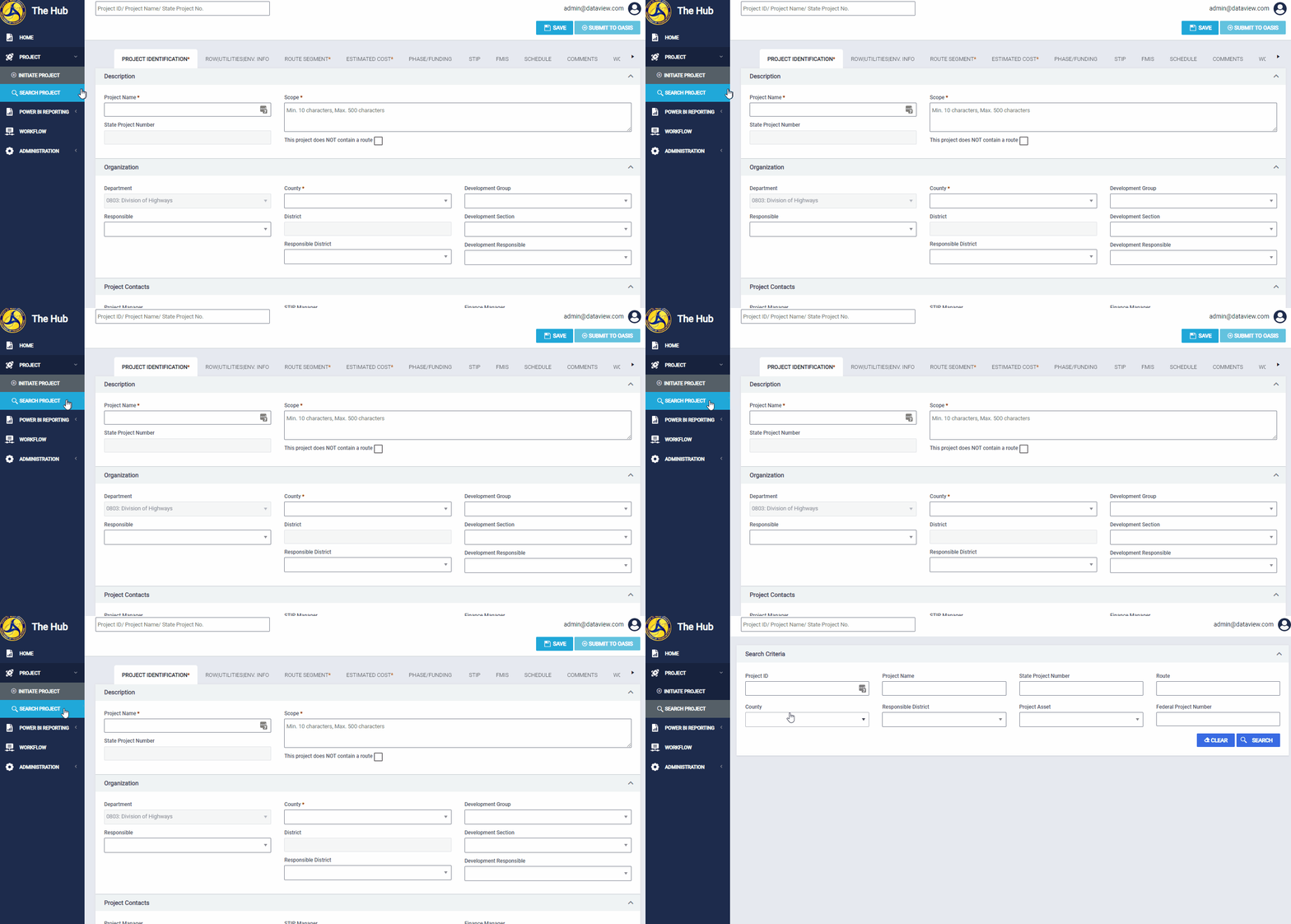
Search Criteria
Each field in the Search Criteria section can be used to search for a project. You can search on a single field or combine several fields to find the project(s) you are looking for.
Notes
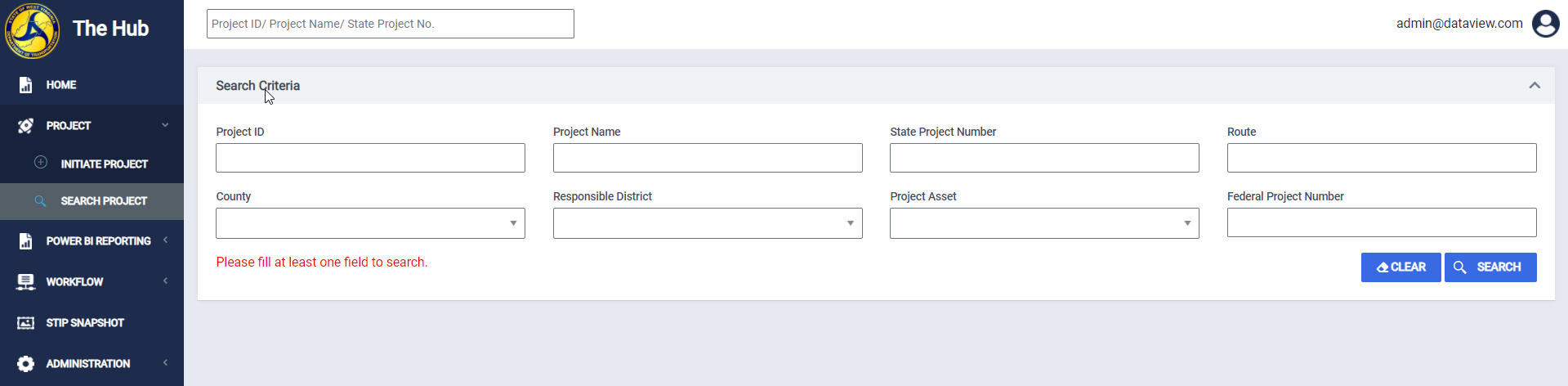
- Populate at least one search criteria field before clicking Search or you will receive an error message.
You can search by combining any of the search criteria fields:
- Project ID: Search with at least one character. Partial searches are accepted and are not case sensitive. (example: 2020001624)
- Project Name: Search with at least one character. Partial searches are accepted and are not case sensitive. (example: I-79 BRIDGE REHAB |BRIDGE REHAB)
- State Project Number: Search with at least one character. Partial searches are accepted and are not case sensitive. (example: U384 79 1097400).
- Route: Search with the sign system and route number. Partial searches are not accepted (example: WV -0017 or WV0017; I - 79 or I79)
- County: Select a value from the dropdown.
- Responsible District: Select a value from the dropdown.
- Project Asset: Select a value from the dropdown.
- Federal Project Number: Search with at least one character. Partial searches are accepted and are not case sensitive. (example: NHPP0792172DTC).
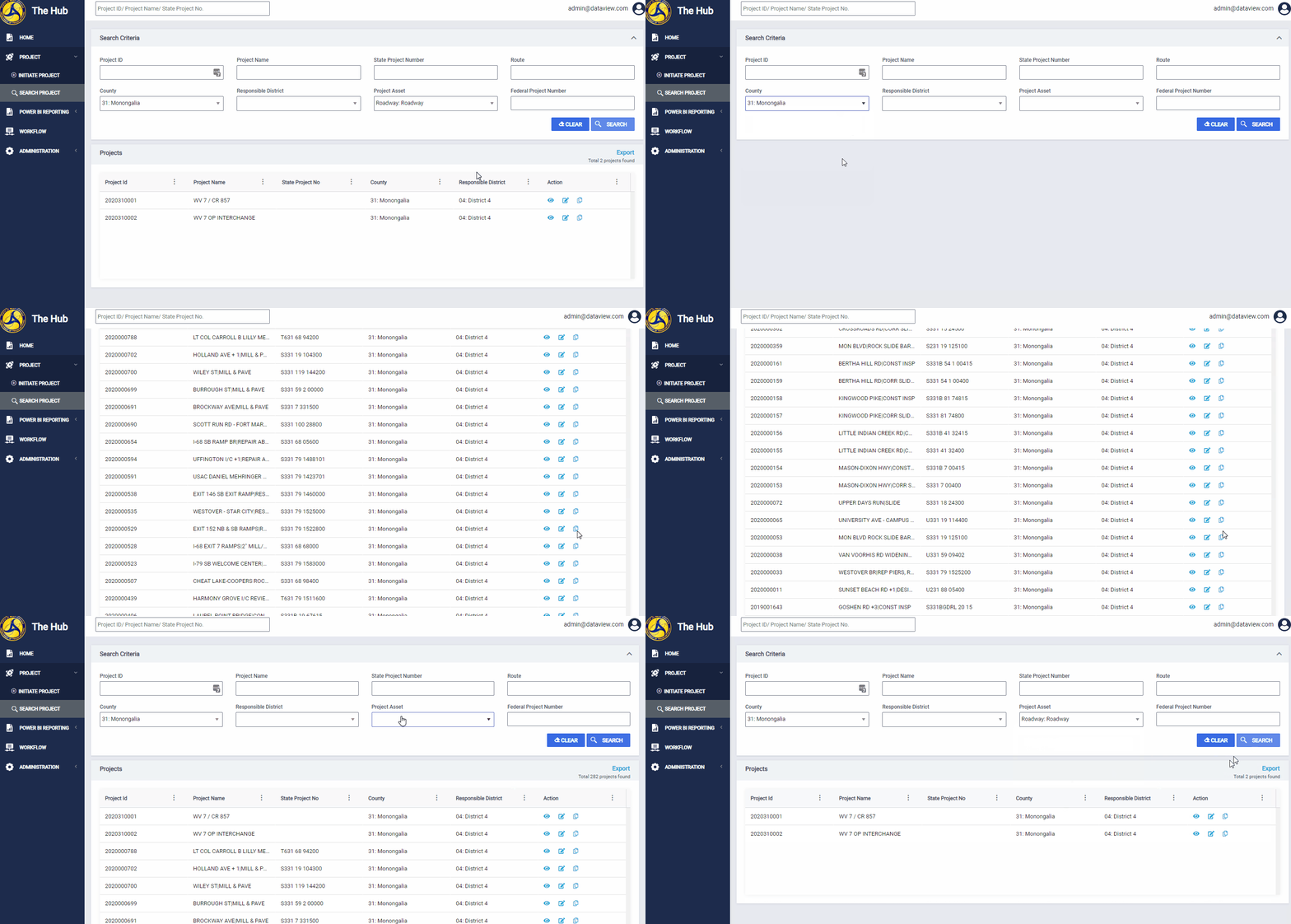
Notes
- You can add criteria to an existing search at any time. Click the Search button to rerun the search with the new criteria.
- To start a new search, click the Clear button to remove existing search criteria.
Search Results Grid
After you have completed a search, the Search Results Grid will appear. This grid returns all relevant projects matching your search criteria.
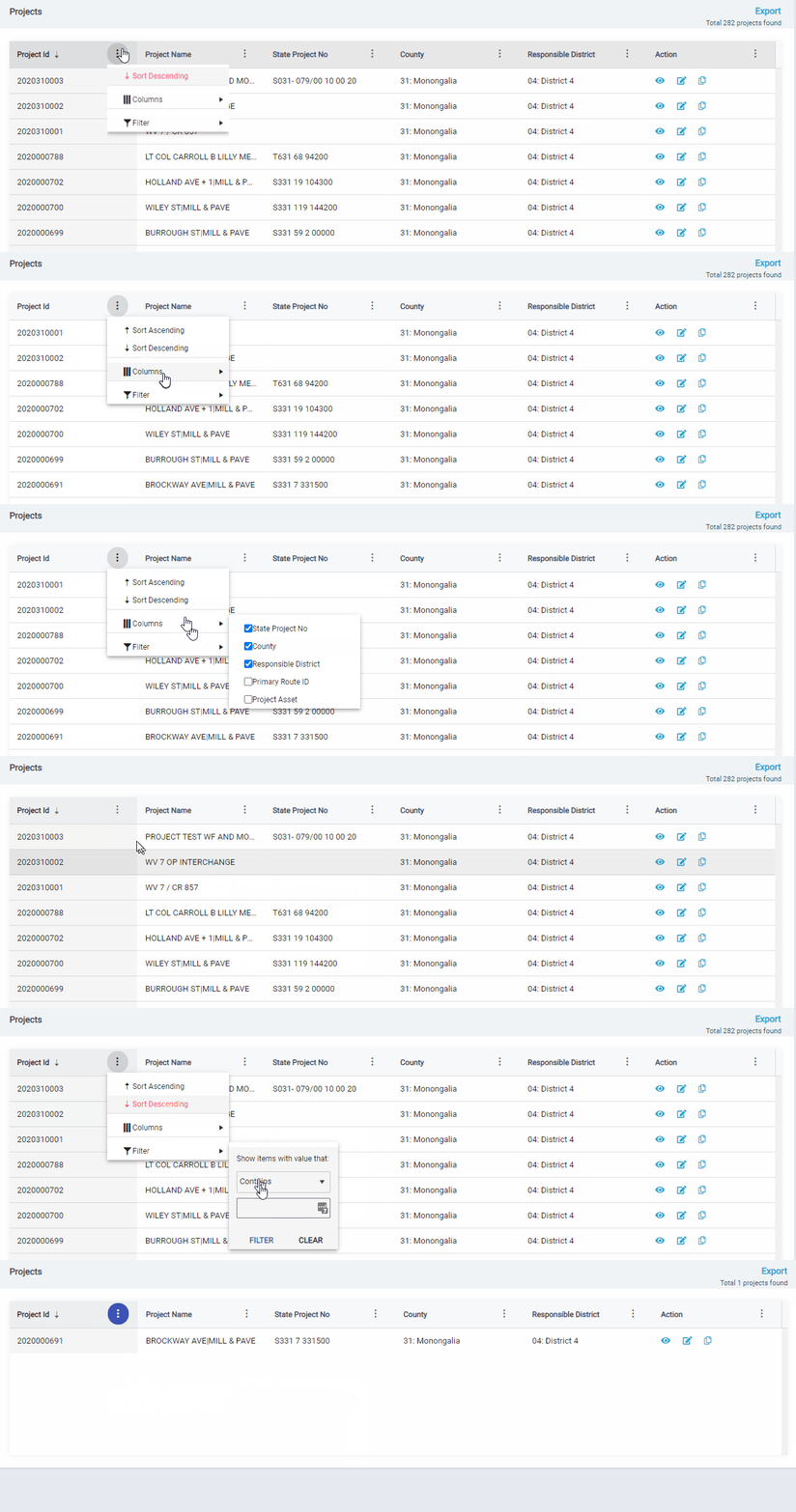
Click the three stacked dots next to a column to see more options for that column. You can sort or filter each column to your preference.
The Hub hides some columns by default. To unhide these, select the three stacked dots, then columns, then the columns you want to unhide.
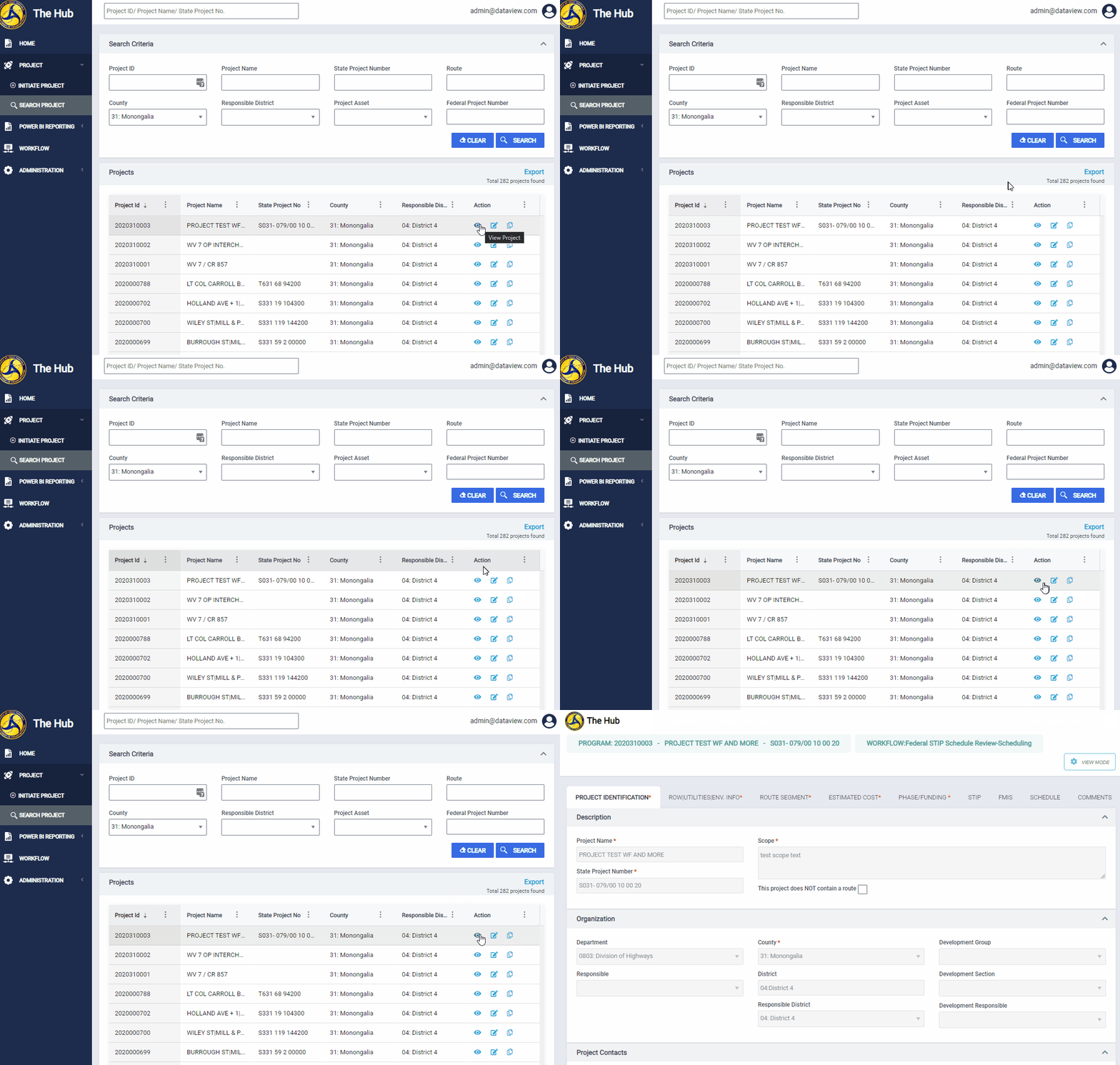
View Project
Clicking the View Project button under the Action column on the Search Results Grid. This will open a project in View Mode. When in this mode, you can not make edits to a project.
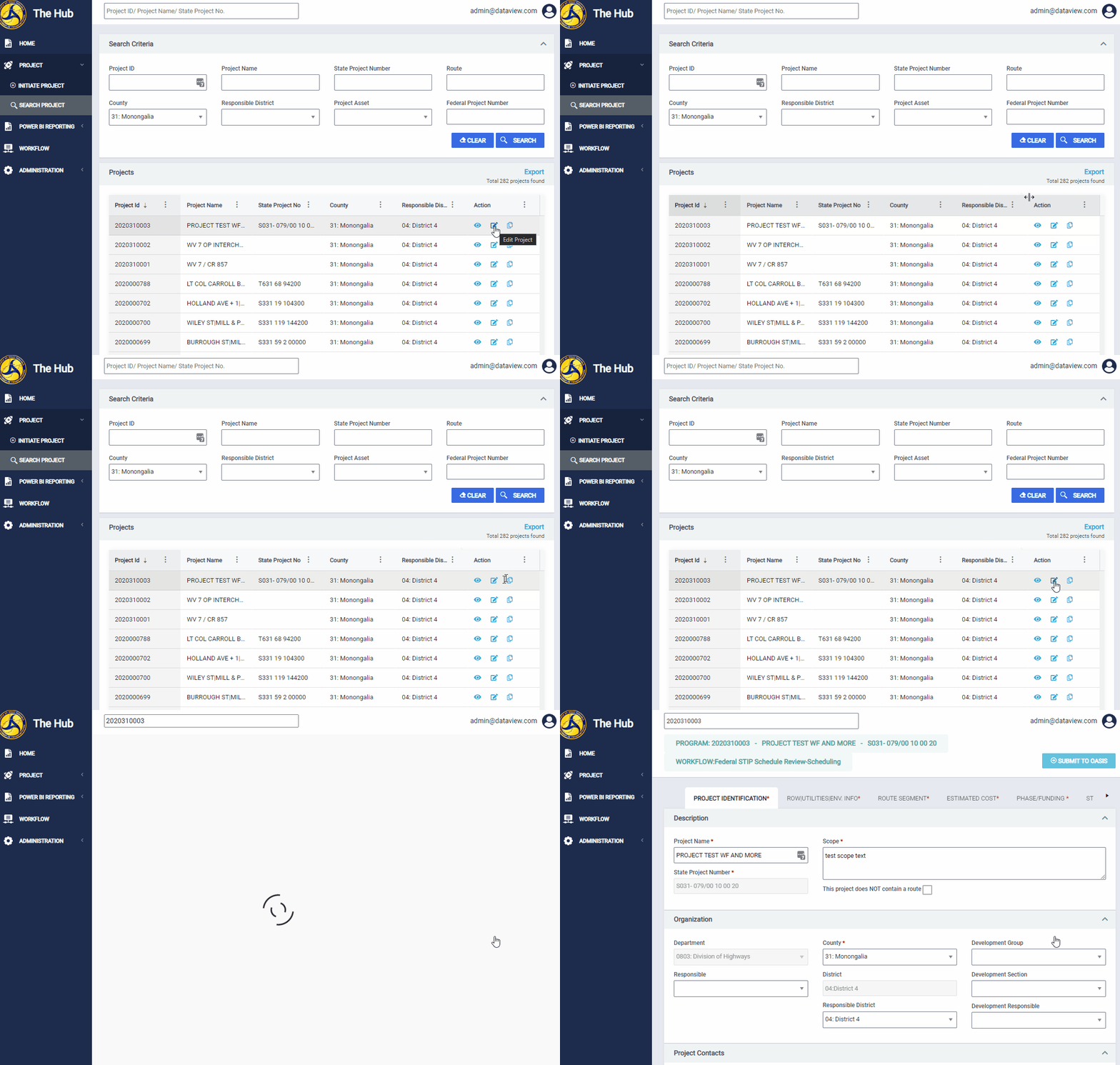
Edit Project
If you have the correct permissions, you can select Edit Project from the search results to open the Project in Mode. Unlike View Mode, you can make edits to a project in Edit Mode.
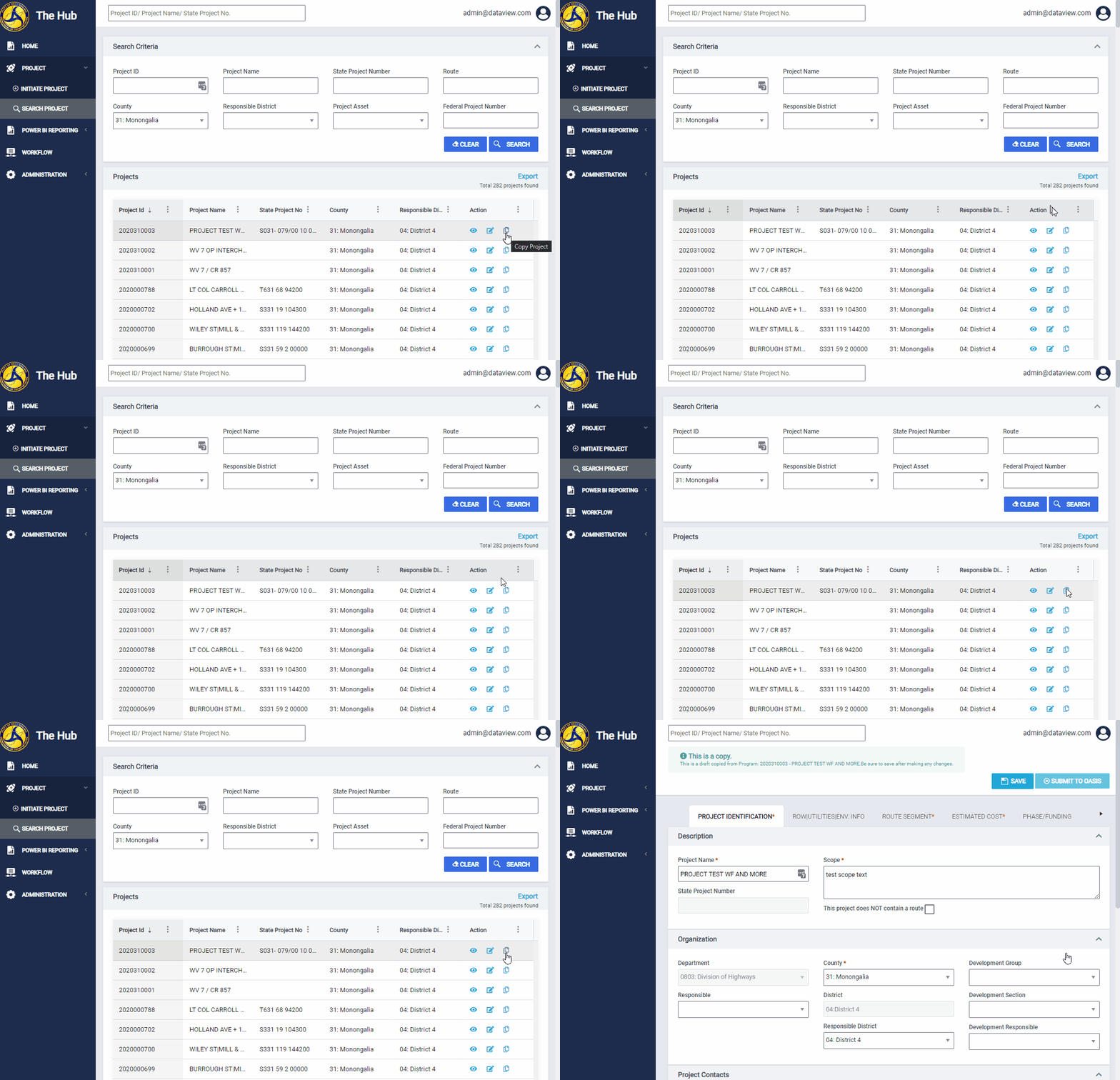
Copy Project
You can copy any project returned in the Search Results Grid. Copying a project will copy some Project data and create a new, draft, project.
Exporting to Microsoft Excel
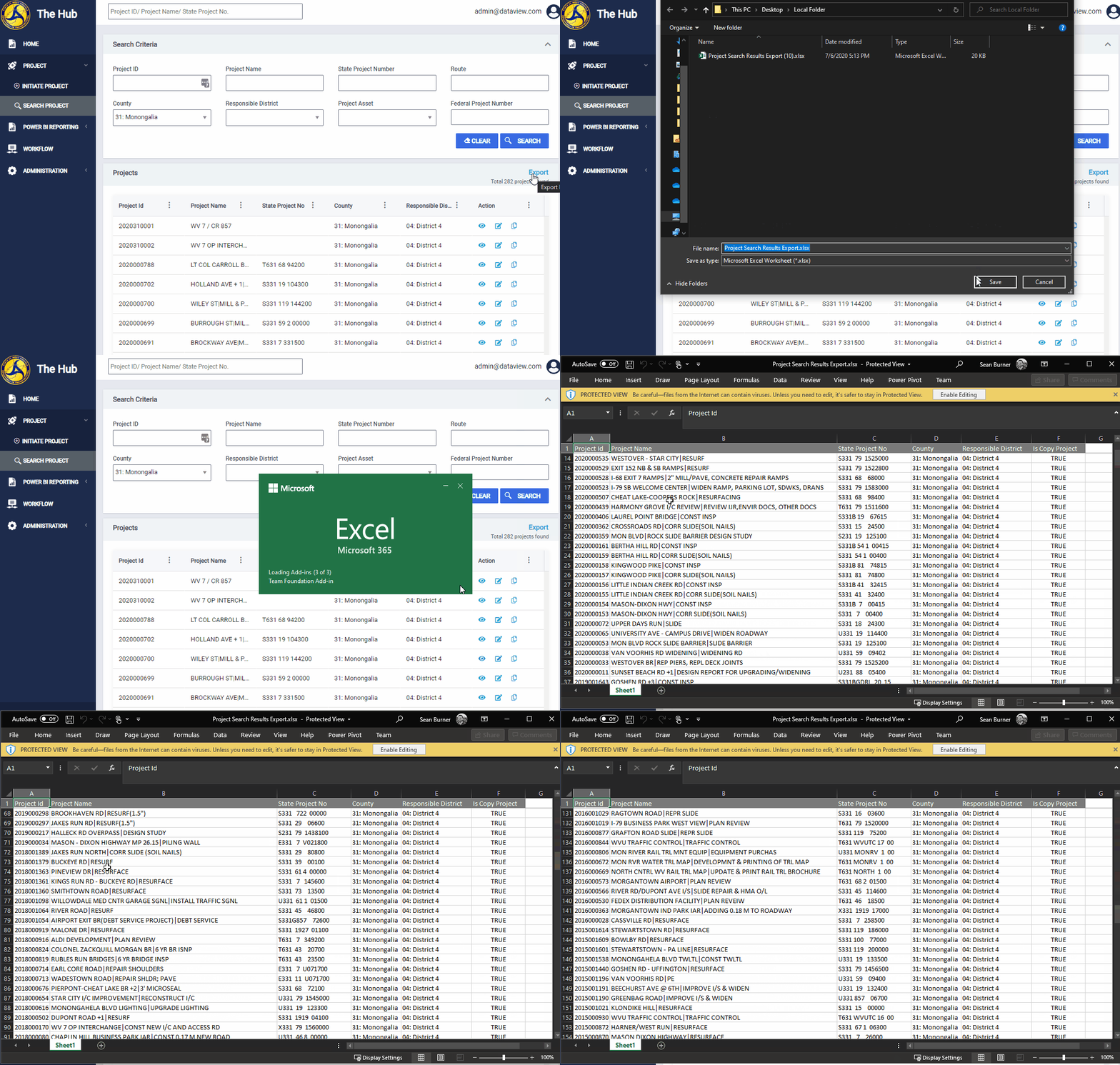
If you want to export this list to Excel, click the Export button. This lets you save the search results as an Excel file on your computer.
Comments
0 comments
Please sign in to leave a comment.